Your congregation, in one place.

The member directory, the calendar, meal sign‑ups, RSVPs and out‑of‑town guests, on every member's phone and private to your congregation. Plus a marketplace for your congregation, or the whole conference.

Look around inside — free

A sample congregation to look around in for 14 days, on any phone, iPad or computer. Nothing to install, no account.

When you start your own, the first 60 days are free, and we'll help you set it up if you'd like.

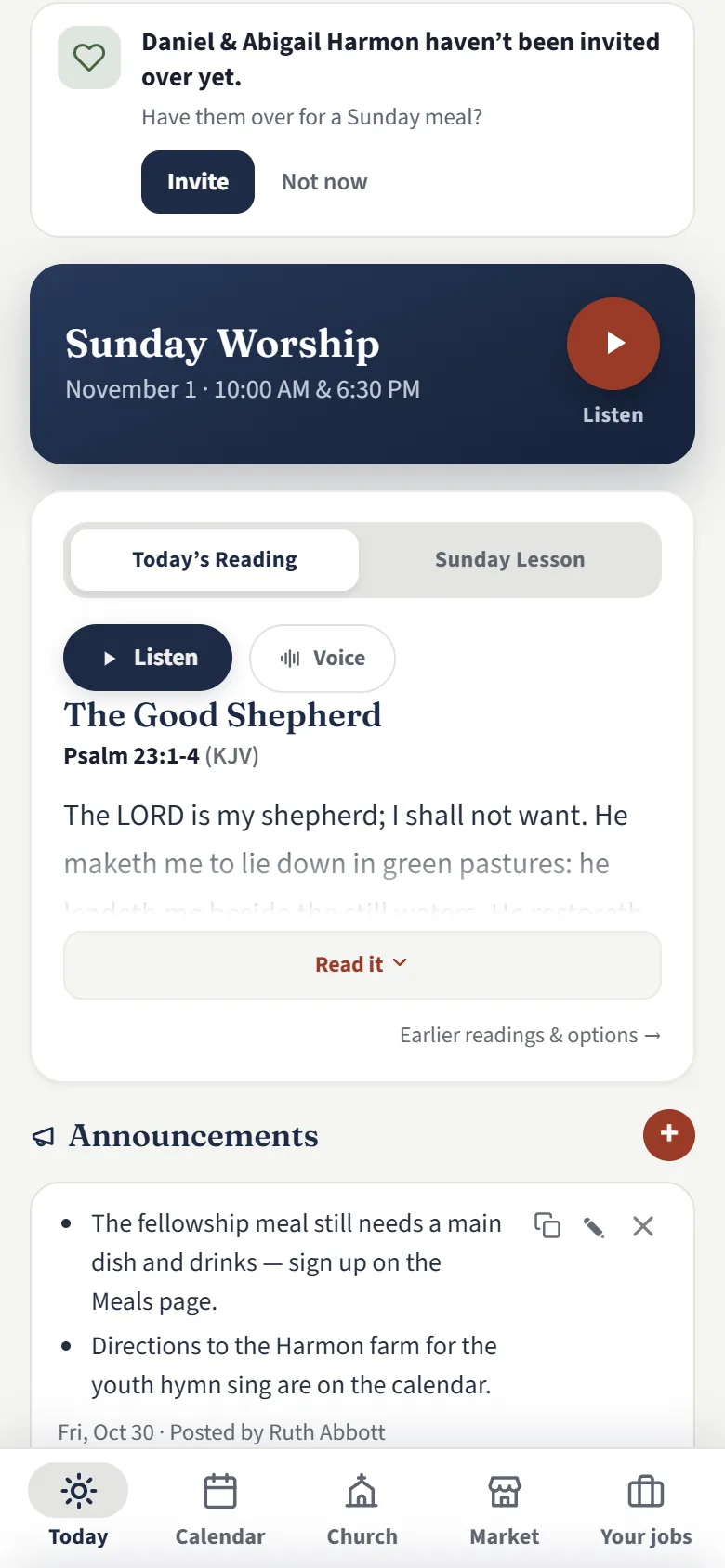
The home screen: this Sunday's service, today's reading with the Sunday school lesson beside it, and the announcements

Daily readings and the Sunday school lessonOn the home screen, every day

Everything your congregation passes around on paper, in one app

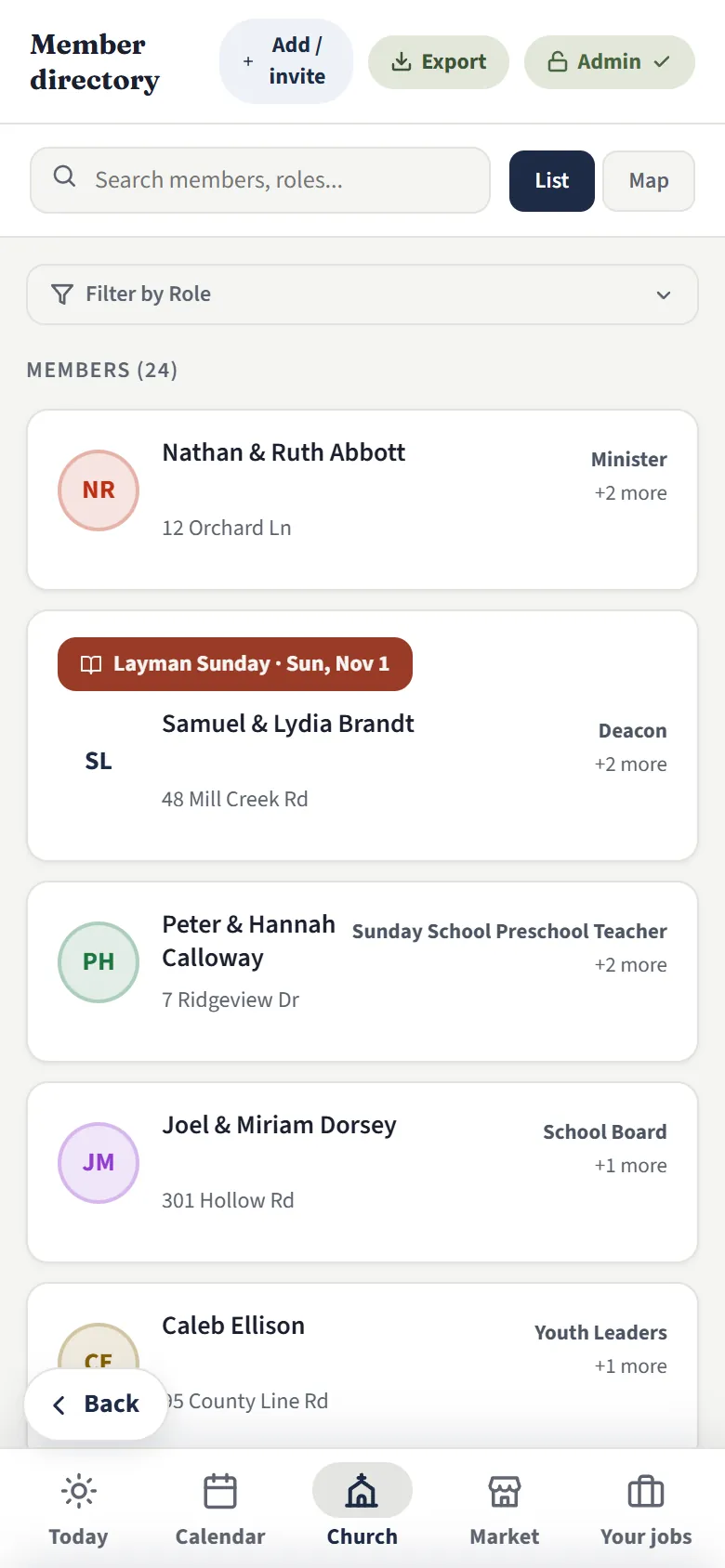
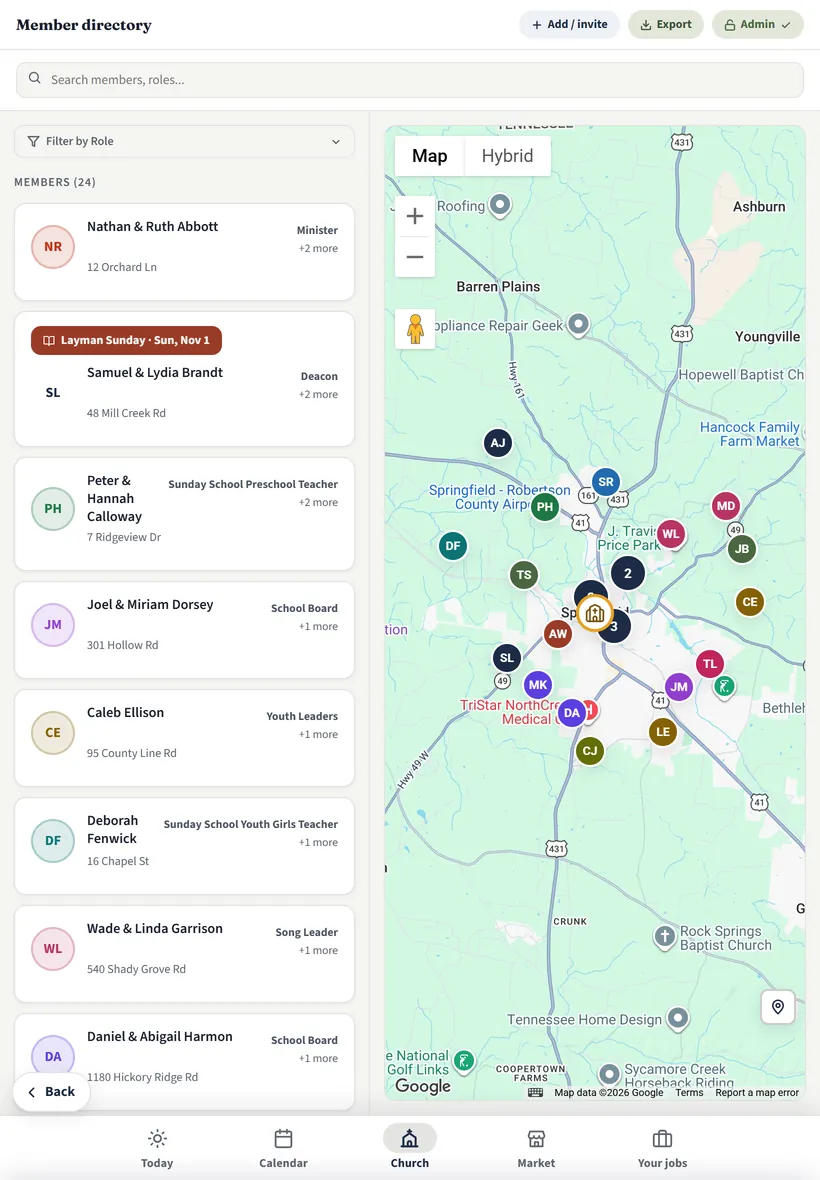
The member directory: households with names, addresses and roles
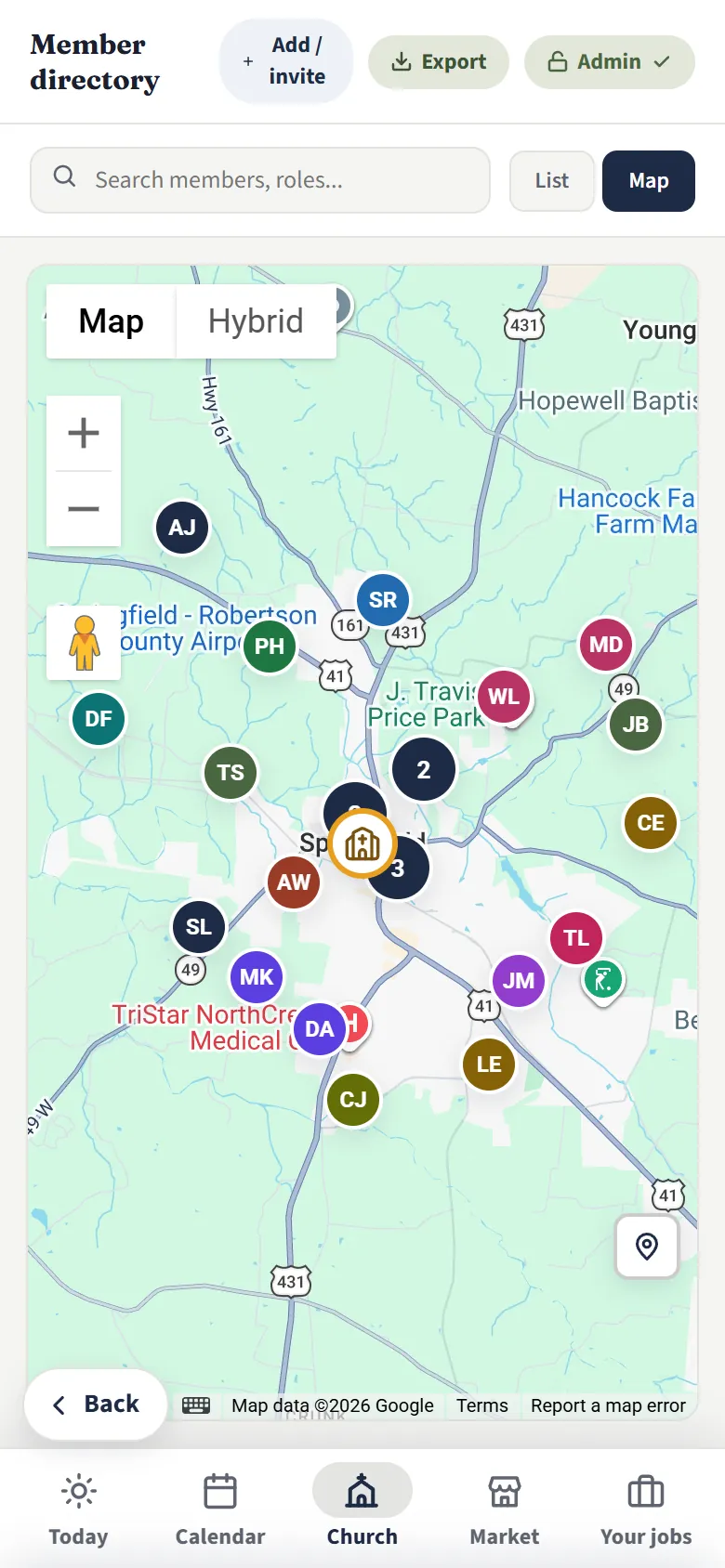
The directory on Google Maps, with a pin for each family

Member directory

Every household: names, phone numbers, addresses, birthdays and children. Search by name or by role.

  • Every family on Google Maps, with directions to any home
  • The other congregations in your conference too, with each family's phone and address unless they keep them to themselves
  • Families keep their own details up to date
  • Bring in your list from a spreadsheet, or type it in
  • Print it or export it any time. It's your congregation's.
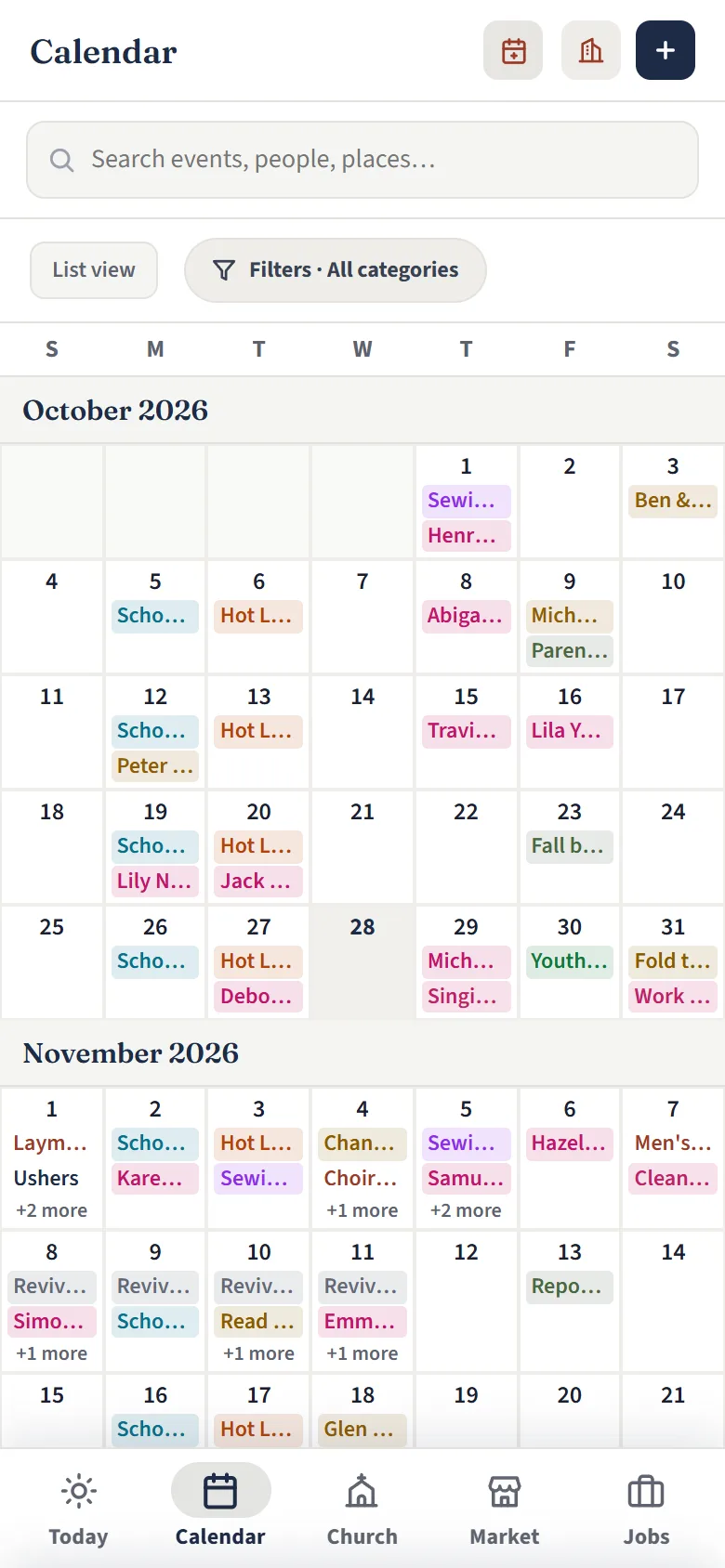
The calendar for September and October

Calendar

Services, meetings, youth nights, school events, birthdays and anniversaries.

  • Shows in your phone's own calendar, and stays up to date
  • Filter to what you need
  • The school board can post the whole school year at once
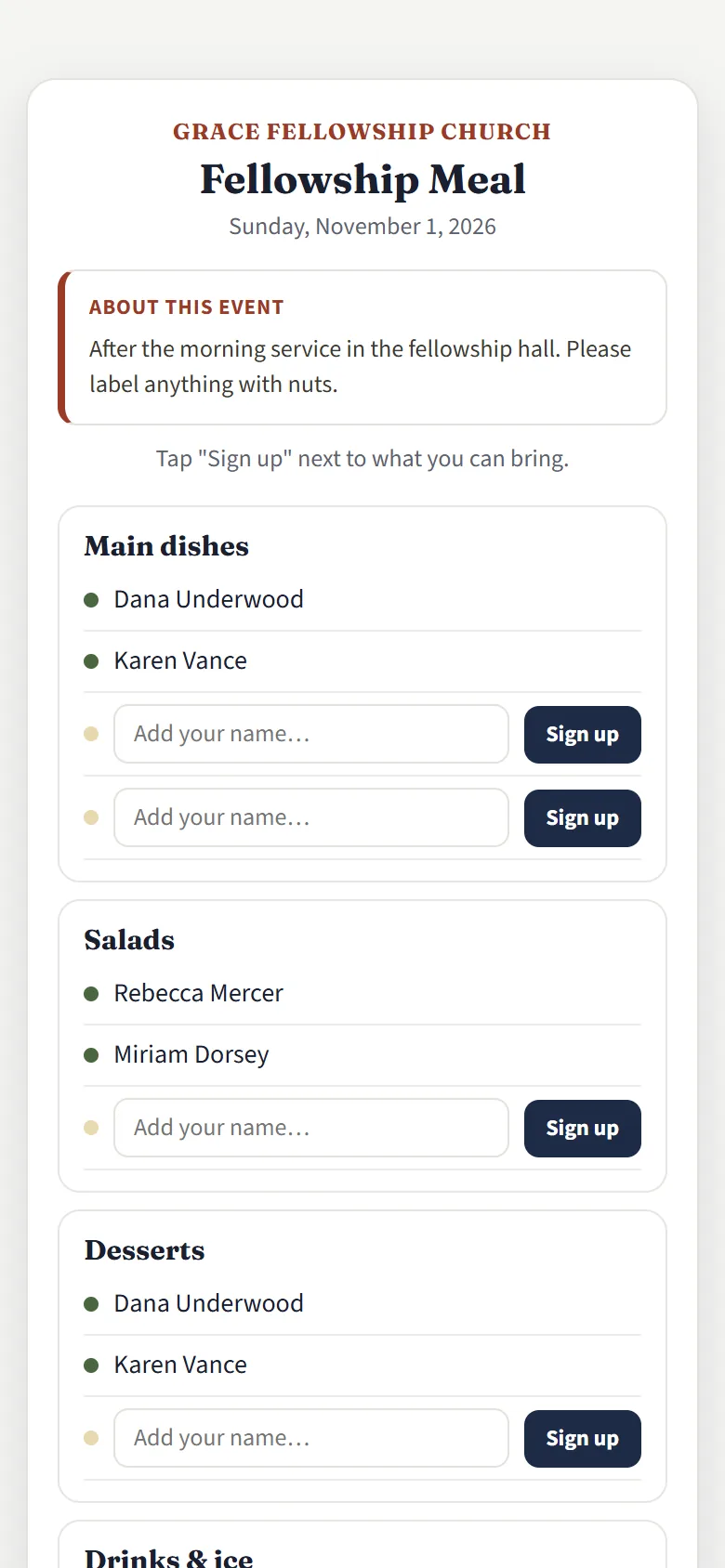
A fellowship meal sign-up sheet with main dishes, salads and desserts

Meal sign-ups

Potlucks, school lunches and revival meals. Share one link; people tap a spot and type their name.

  • No account needed to sign up
  • Two people can't take the same spot
  • Add a recipe from the congregation's cookbook to the dish
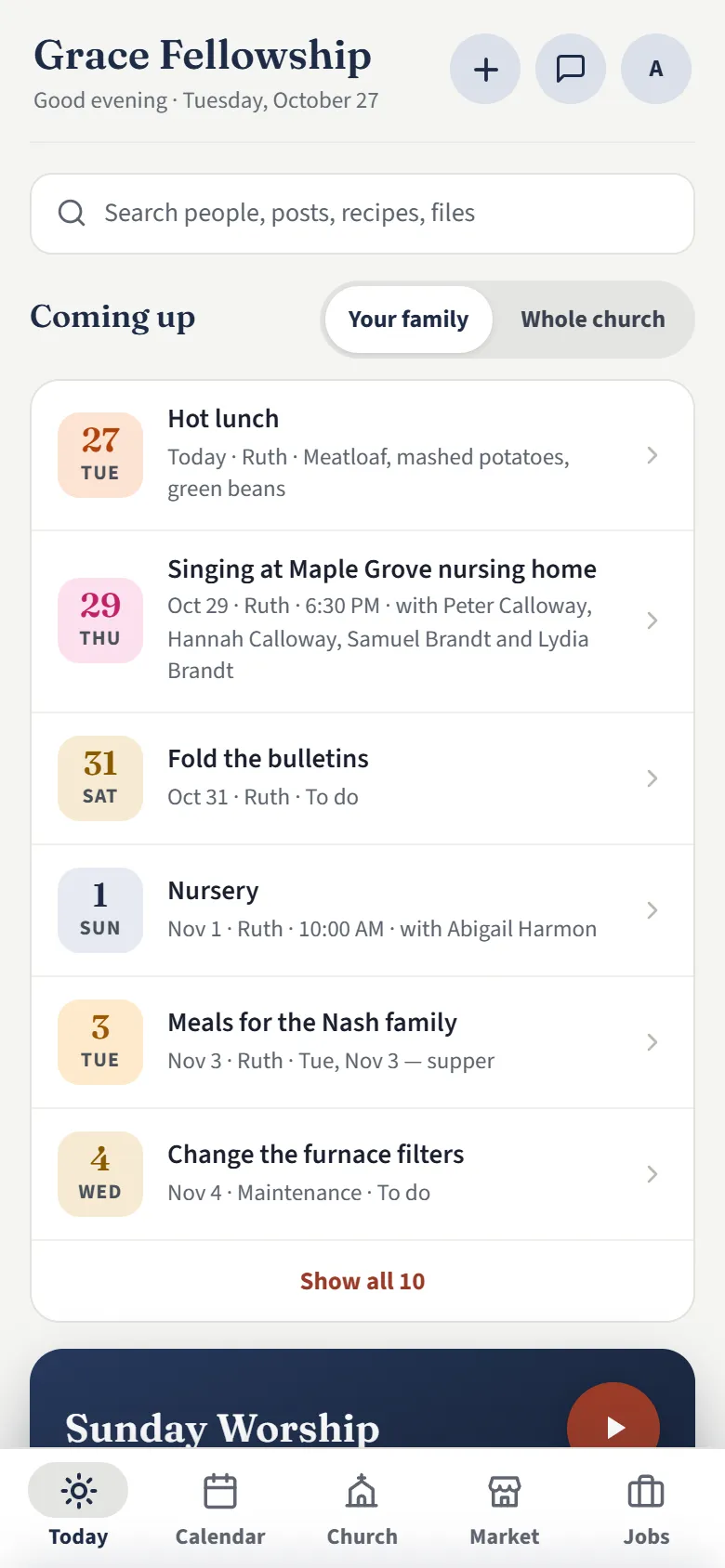
Today’s “Coming up” for your family: hot lunch today, singing at the nursing home, fold the bulletins, the nursery, a meal for the Nash family, and changing the furnace filters for Maintenance
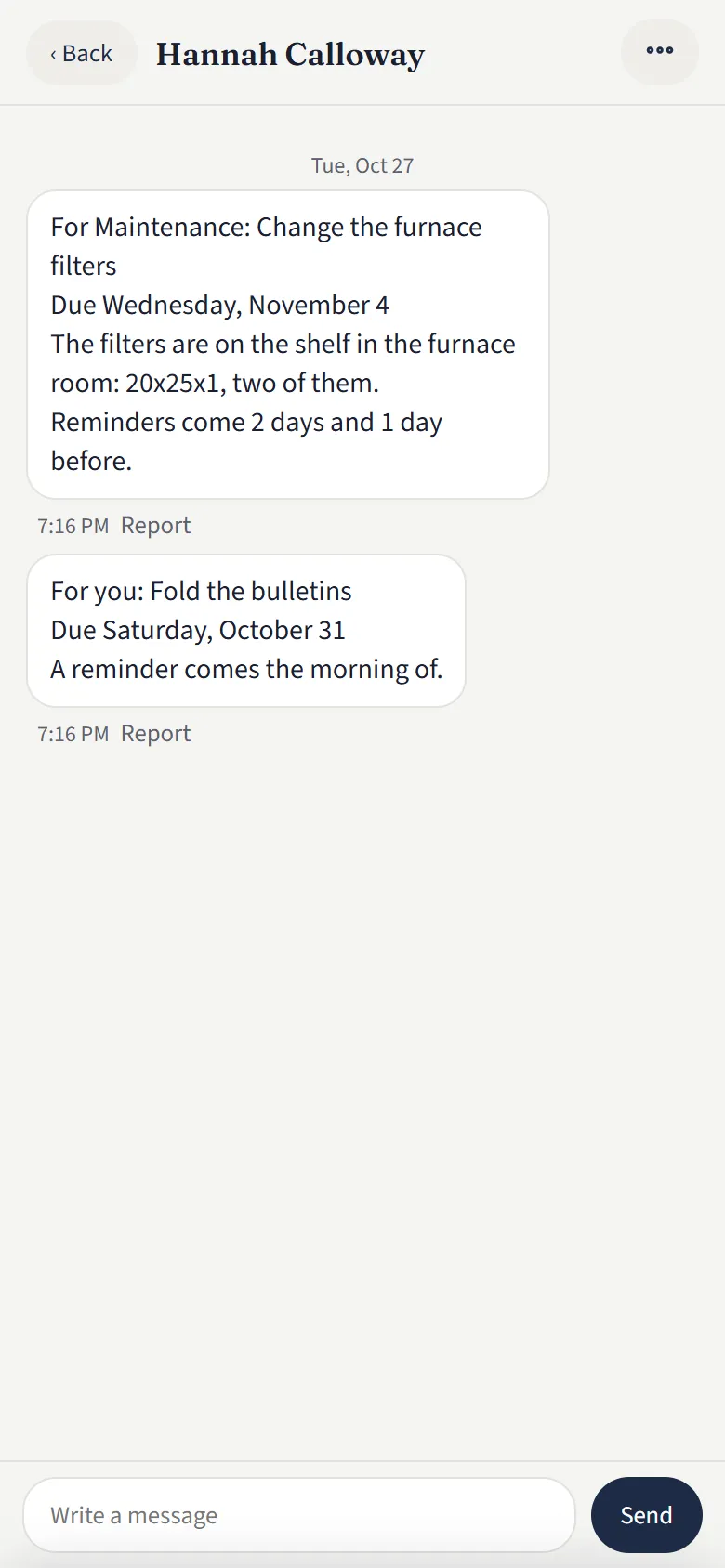
Messages from Hannah Calloway: “For Maintenance: Change the furnace filters, due Wednesday, November 4. Reminders come 2 days and 1 day before,” and “For you: Fold the bulletins, due Saturday, October 31. A reminder comes the morning of.”

Messages and reminders

Not just for the Market. Whatever you're down for is on your Today page. When someone puts you down for something on the calendar, it comes to you in Messages, and a reminder follows before it's due.

  • Your hot lunch day, your turn at school devotions, or a to-do on the calendar
  • By your name, or by a job you hold, like Maintenance or the School Board
  • Reminders 2 days, a day, an hour or 30 minutes before, on your phone too
  • Write to anyone in your congregation, a seller or a host, without swapping phone numbers
  • Put a conversation away, block someone or report it
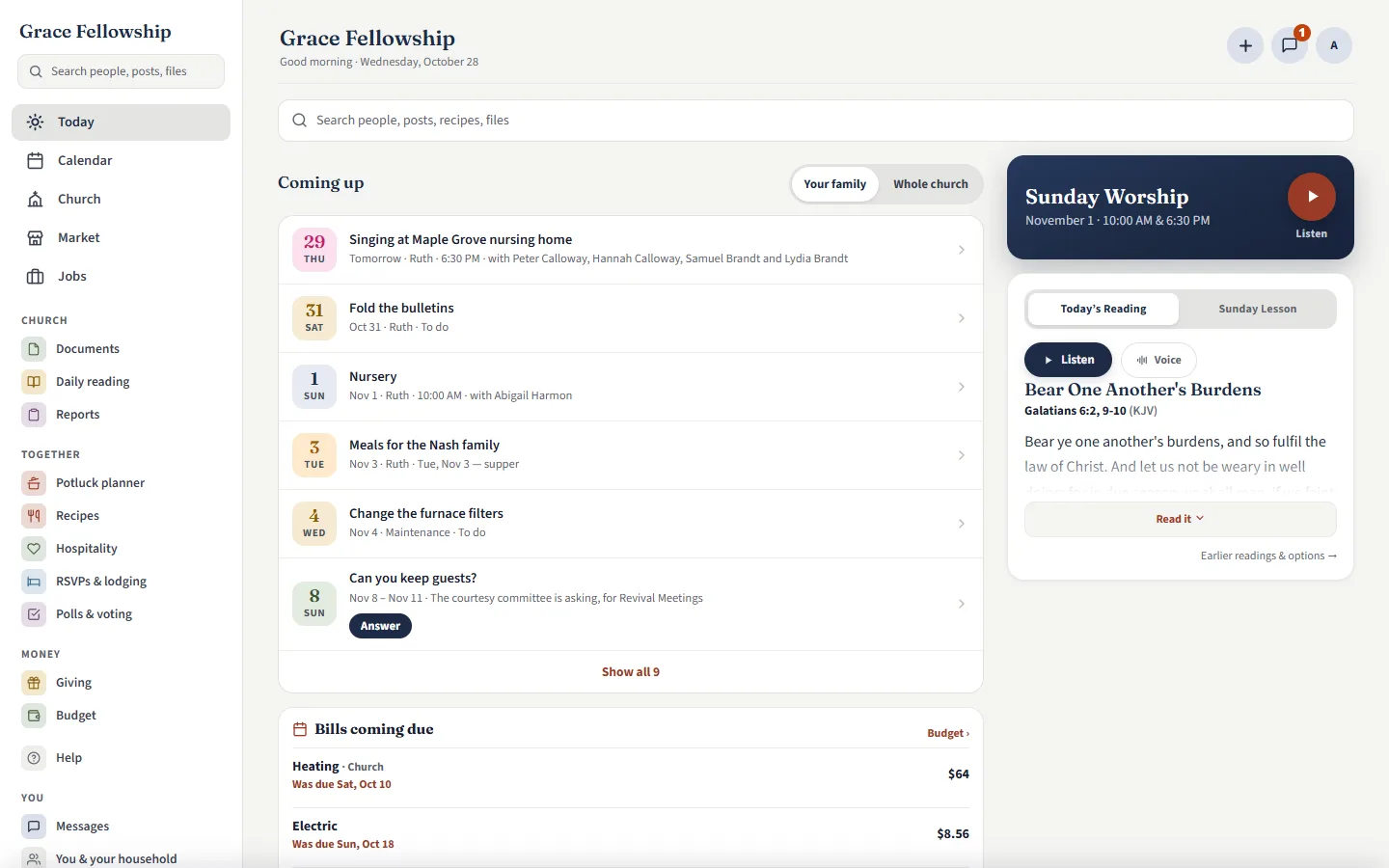
Olive Leaf on a computer: Today, with every page in a sidebar on the left, what's coming up for your family, and the Sunday reading
On an iPad: the member directory beside its Google map
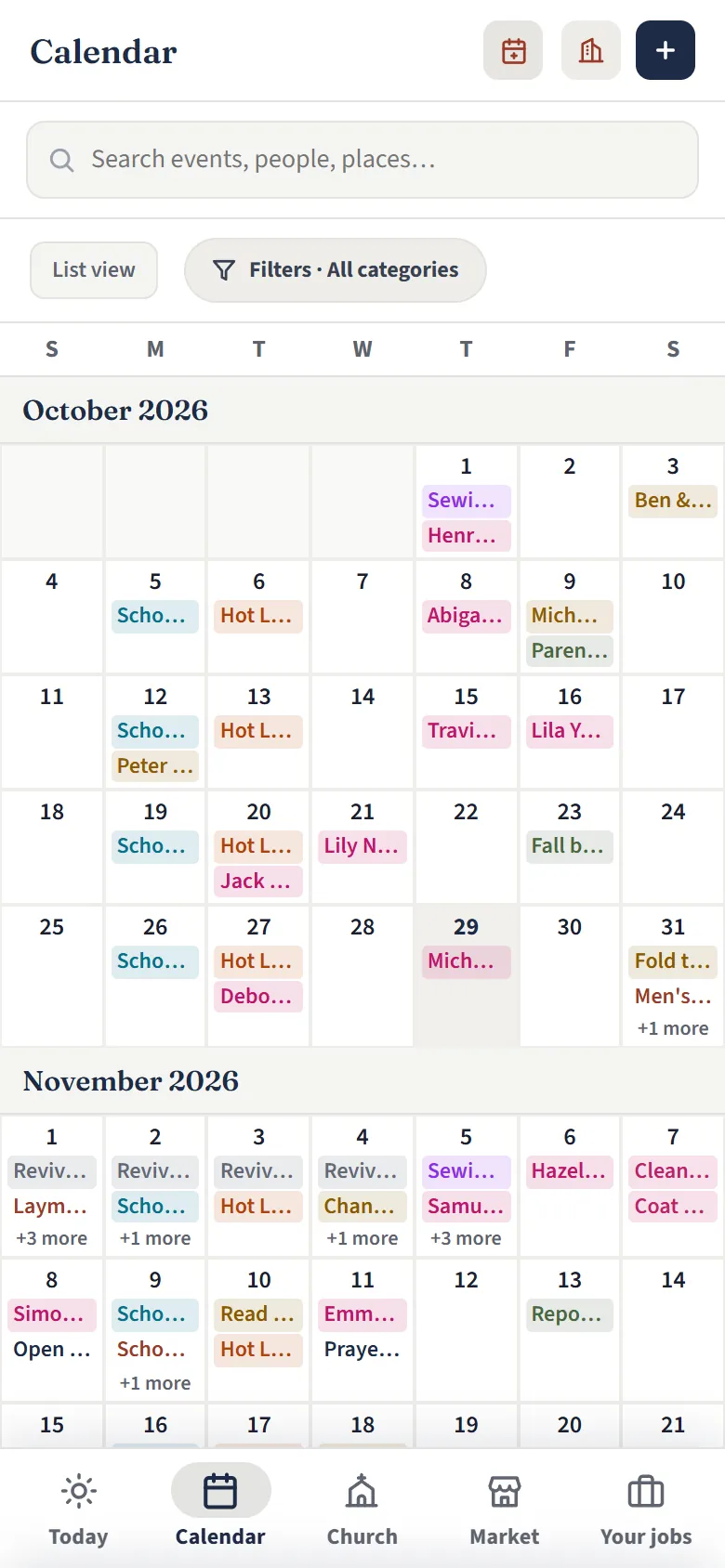
On a phone: the calendar for October and November

On a phone, an iPad or a computer

Add Olive Leaf to your home screen and it works just like an app from the app store, with its own icon, the full screen and notifications. It runs on the web underneath, so there's no store to go through and nothing to update.

Put it on your home screen

iPhone and iPad: in Safari, tap Share, then Add to Home Screen.

Android: tap the browser's menu, then Install app.

The app shows these steps the first time you open it.

  • iPhones, Android phones, iPads and other tablets
  • Windows and Mac computers, with a wider layout for the office
  • Change something on one, and it's on the others

A wedding, start to finish

From the couple's page to a bed for every out-of-town guest and the wedding meal. The courtesy committee and the food committee work in the same app, and guests never need an account.

Keep scrolling to go through the steps

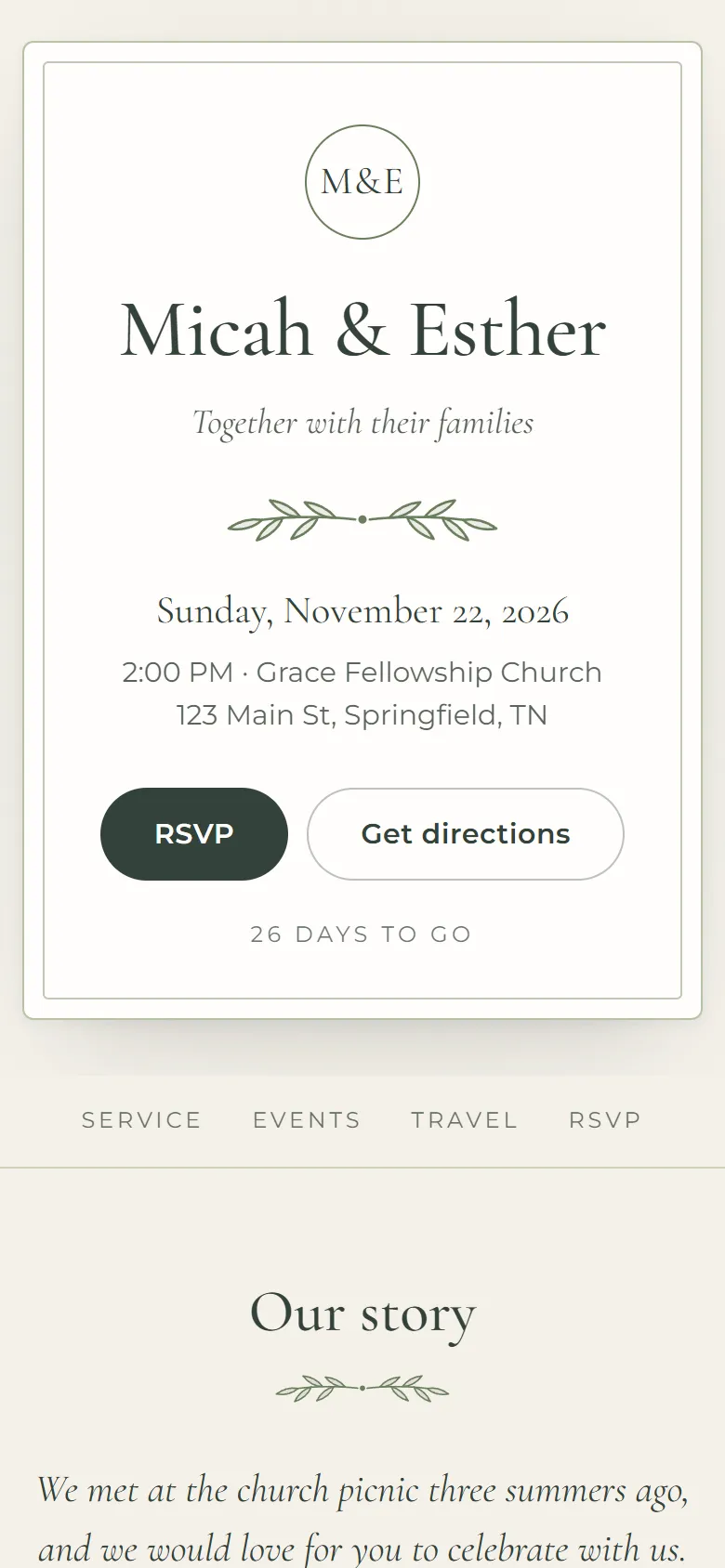
  1. Micah and Esther’s wedding website: their names on an invitation card with the date, the church, RSVP and Get directions

    The couple's wedding page

    1The couple

    The schedule, directions, where to stay, and the RSVP, on a custom website of their own.

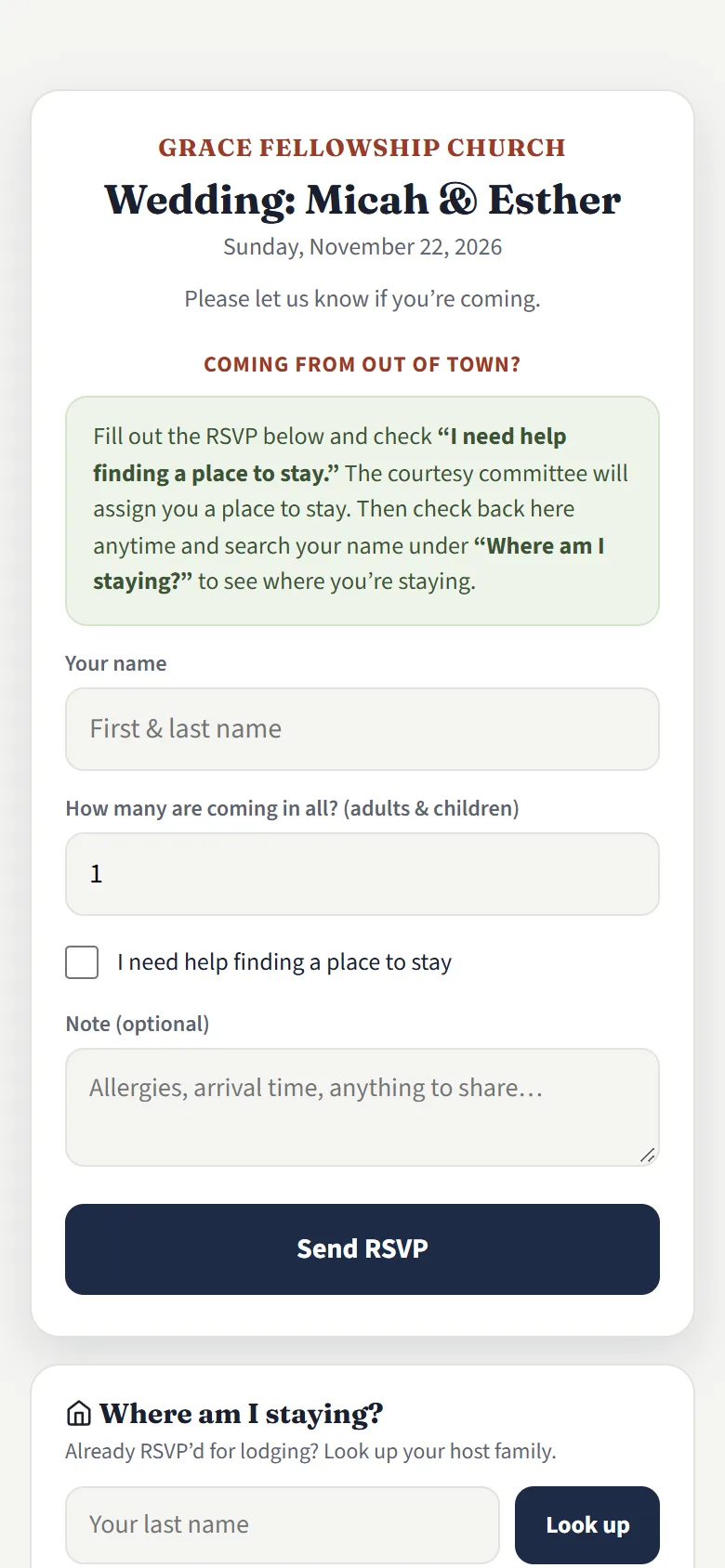
  2. The RSVP a guest opens from the link: their name, how many are coming, “I need help finding a place to stay”, and a note

    Guests answer from a link

    2Guests

    The RSVP collects how many guests are coming and whether they'll need a place to stay. No account needed.

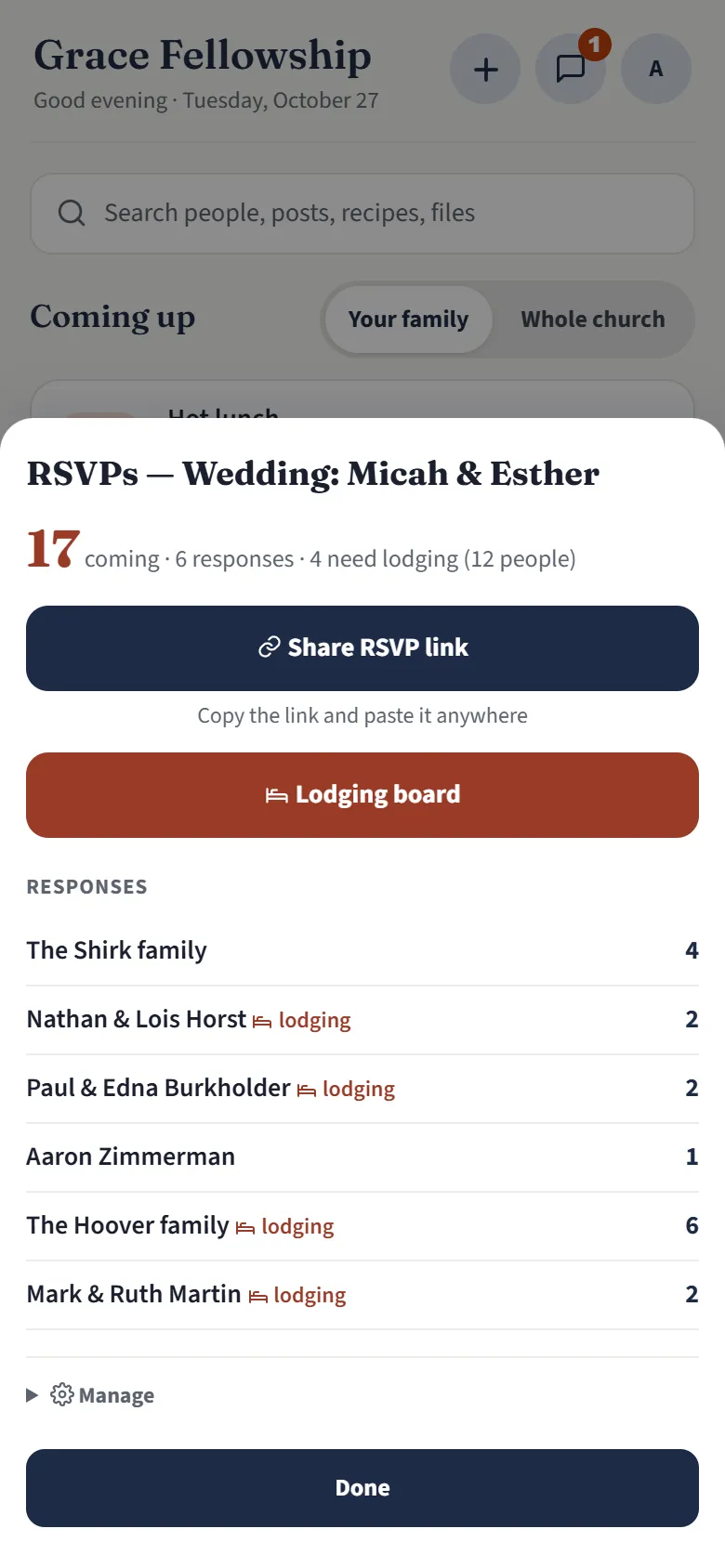
  3. RSVPs for the wedding: 17 coming, 6 responses, 4 need lodging

    Every answer, counted

    3The courtesy committee

    Who's coming, how many, and who needs a place to stay, as well as the headcount for the food committee.

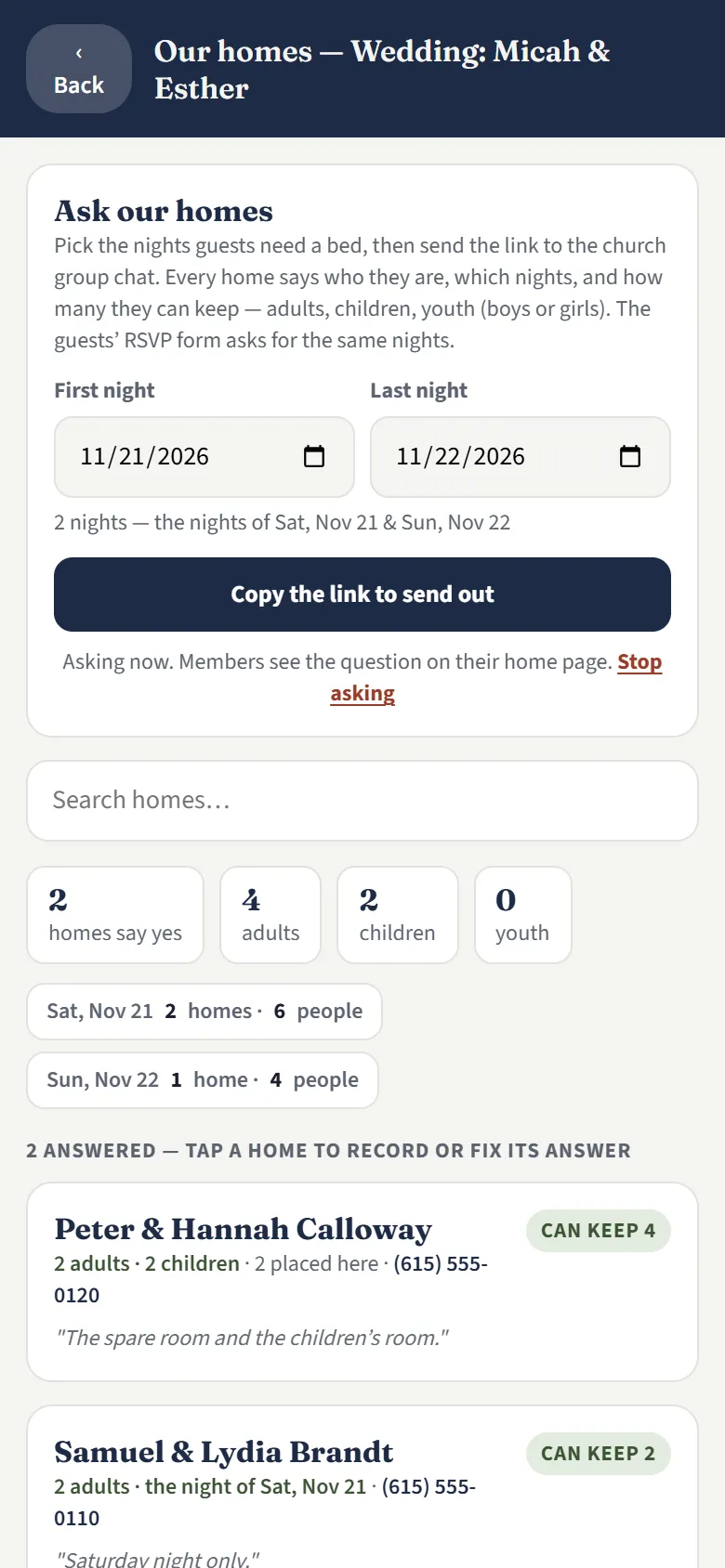
  4. Our homes for the wedding: the Saturday and Sunday nights, the link to send, and the two homes that said yes

    Ask the congregation's homes

    4The courtesy committee

    One link for the congregation to sign up if they can keep guests.

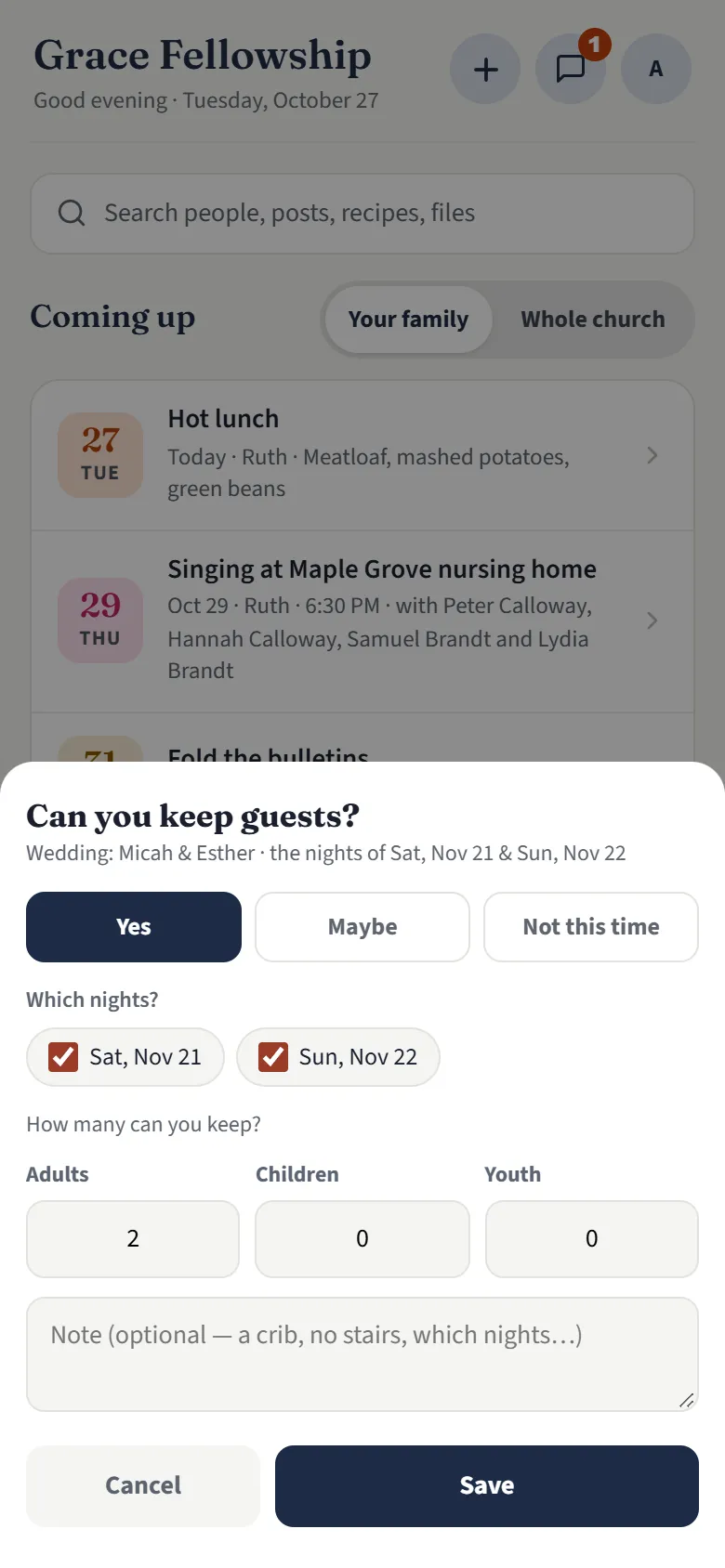
  5. “Can you keep guests?” for the wedding, with Yes, Maybe or Not this time, the two nights, and how many

    Homes say what they can keep

    5Host families

    Yes, maybe or not this time: which nights, and how many adults, children and youth.

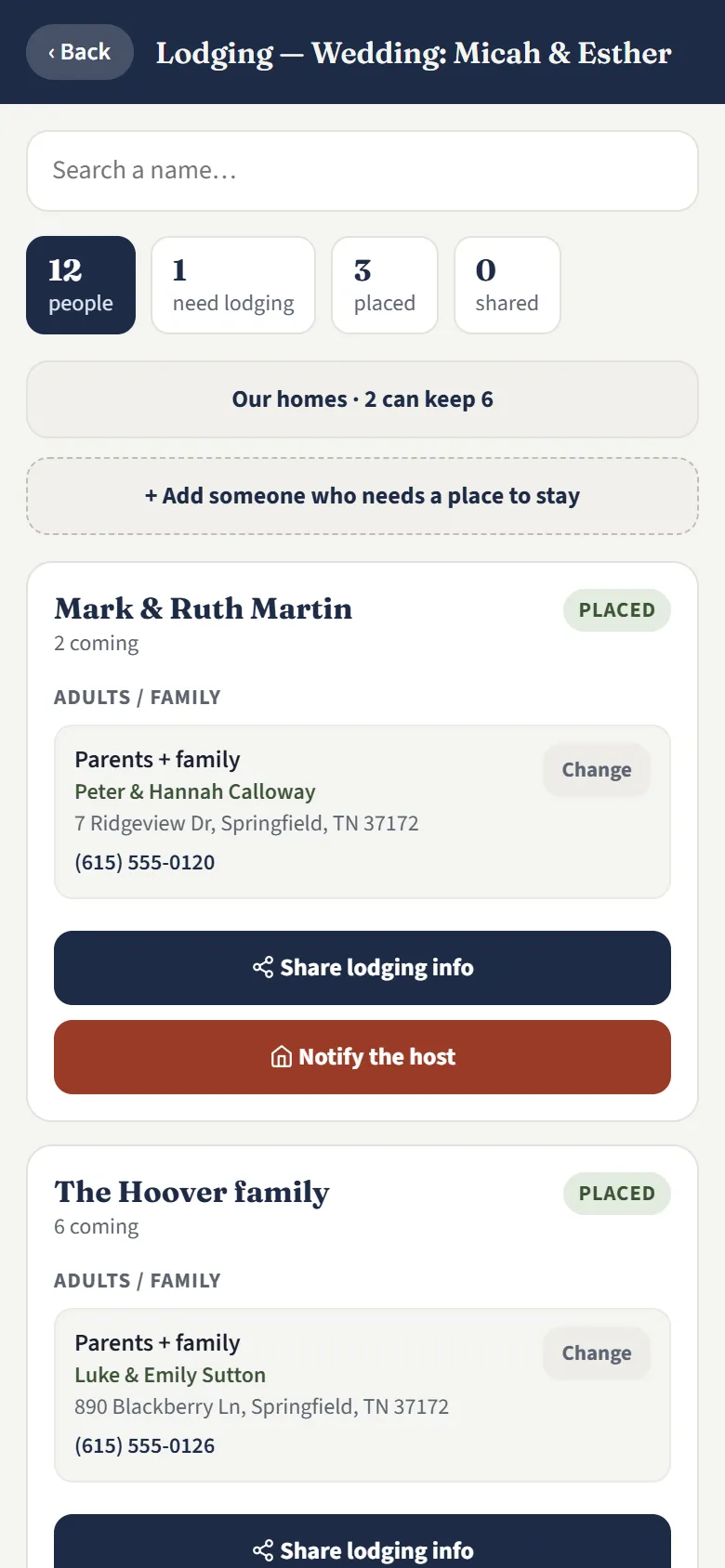
  6. The wedding’s lodging board: each family placed with a host home, with Share lodging info and Notify the host

    Courtesy committee dashboard

    6The courtesy committee

    A place for the courtesy committee to manage where guests are staying: place each family with a host home, let the host know, and send the guests their details.

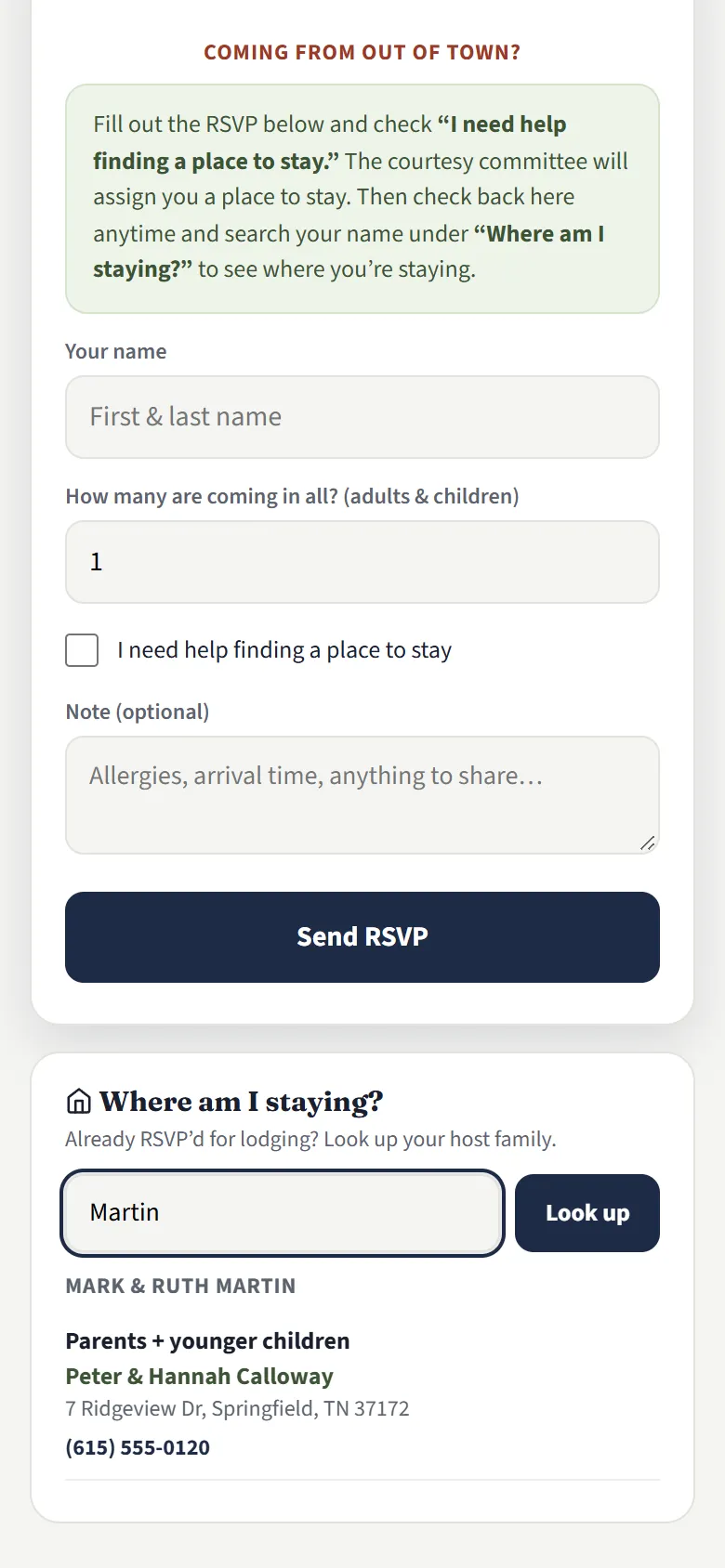
  7. A wedding guest’s “Where am I staying?” lookup: Mark and Ruth Martin, with Peter and Hannah Calloway

    Guests know where they're staying

    7Guests

    They look up where they're staying and get the host's address and phone number. If their youth are staying somewhere separately, they can see where too.

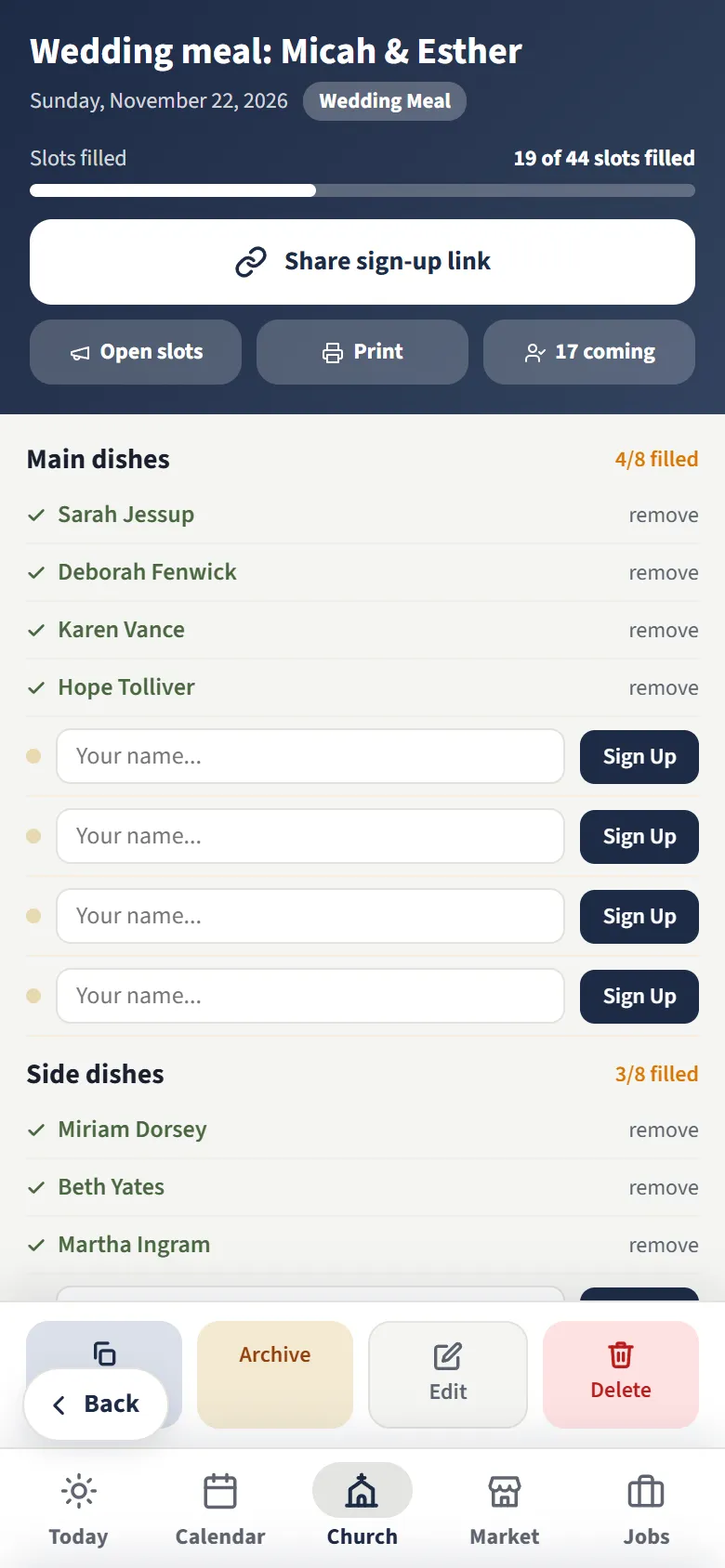
  8. The wedding meal sign-up: 17 coming, the main dishes and side dishes, who is bringing what, and the open spots

    The wedding meal, covered

    8The food committee

    Every meal’s details in one place. The ladies sign up to bring food, and the food committee sees the live RSVP headcount, so they can plan for how many are coming.

Swipe through the steps

Business meeting and Sunday school elections made easy

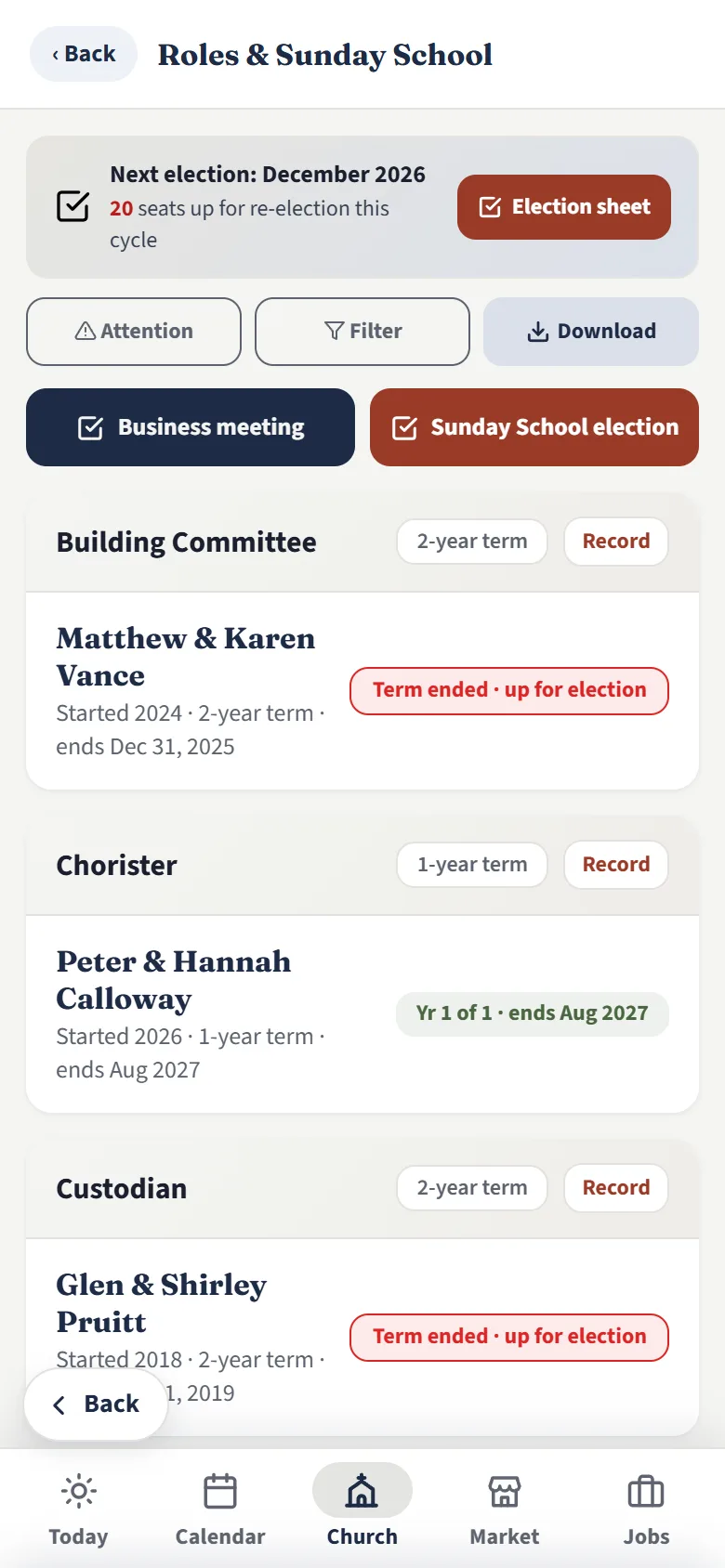
See who serves where, and keep track of when each term ends.

  • Every position and who holds it, from the deacons to the custodian
  • When each term ends, with the seats up for election flagged ahead of the business meeting
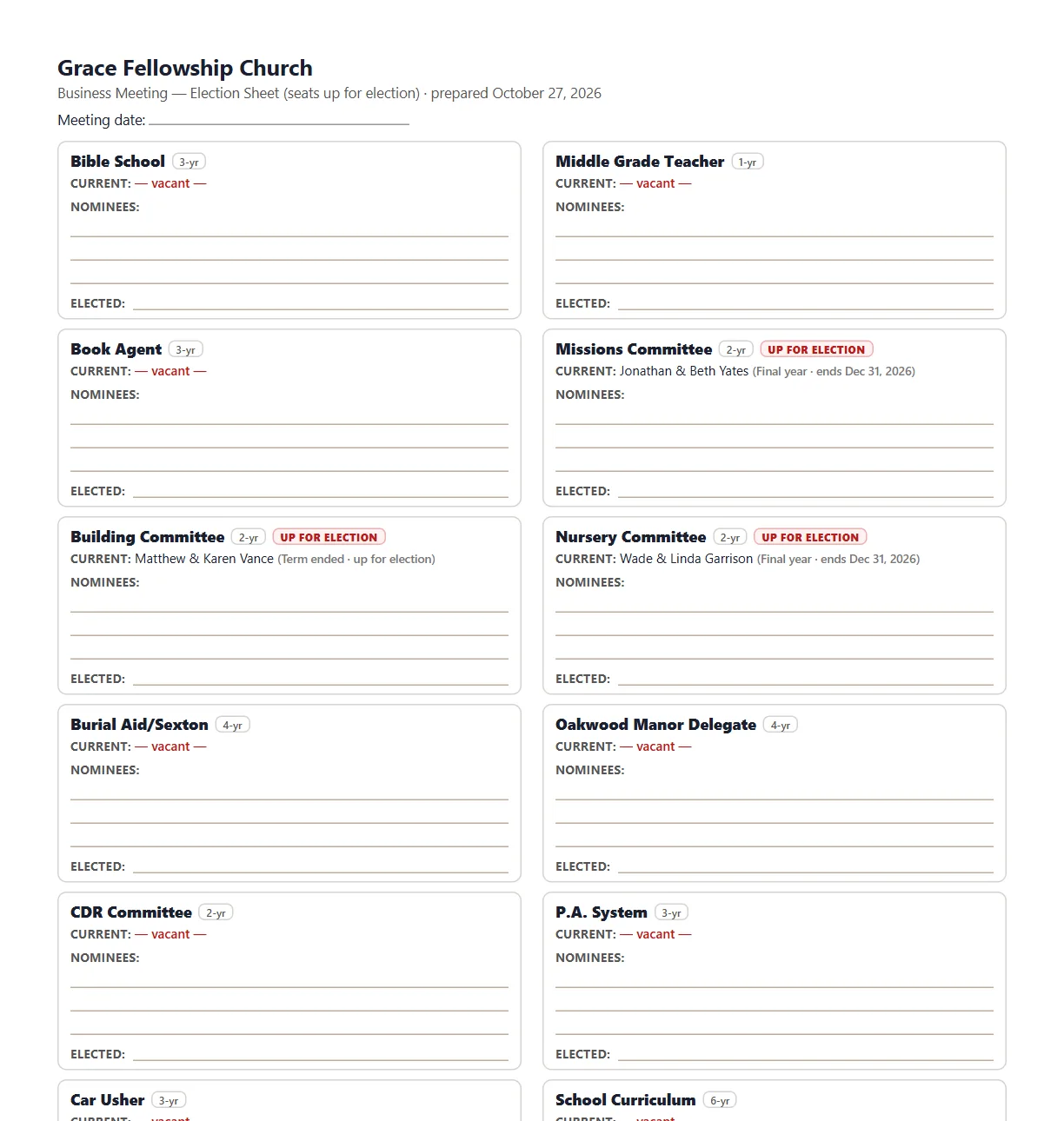
  • One tap prints the sheet for election night: just the seats up for a vote, with lines for the nominees and the one elected
  • Record the results on one page, and everyone's roles update
  • The Sunday School election too, with a sheet of its own
  • Each person's jobs show on their card in the directory

Election night sheetPrinted for the meeting, or filled in on screen

The printed election sheet for the business meeting: each seat up for a vote, who holds it now, lines for nominees, and a line for the one elected
Church roles: the next election in December, 20 seats up for re-election, the Election sheet button, and each role with its holders and when their term ends

More of the app

Real screens from a sample congregation. The names are made up; everything works as shown.

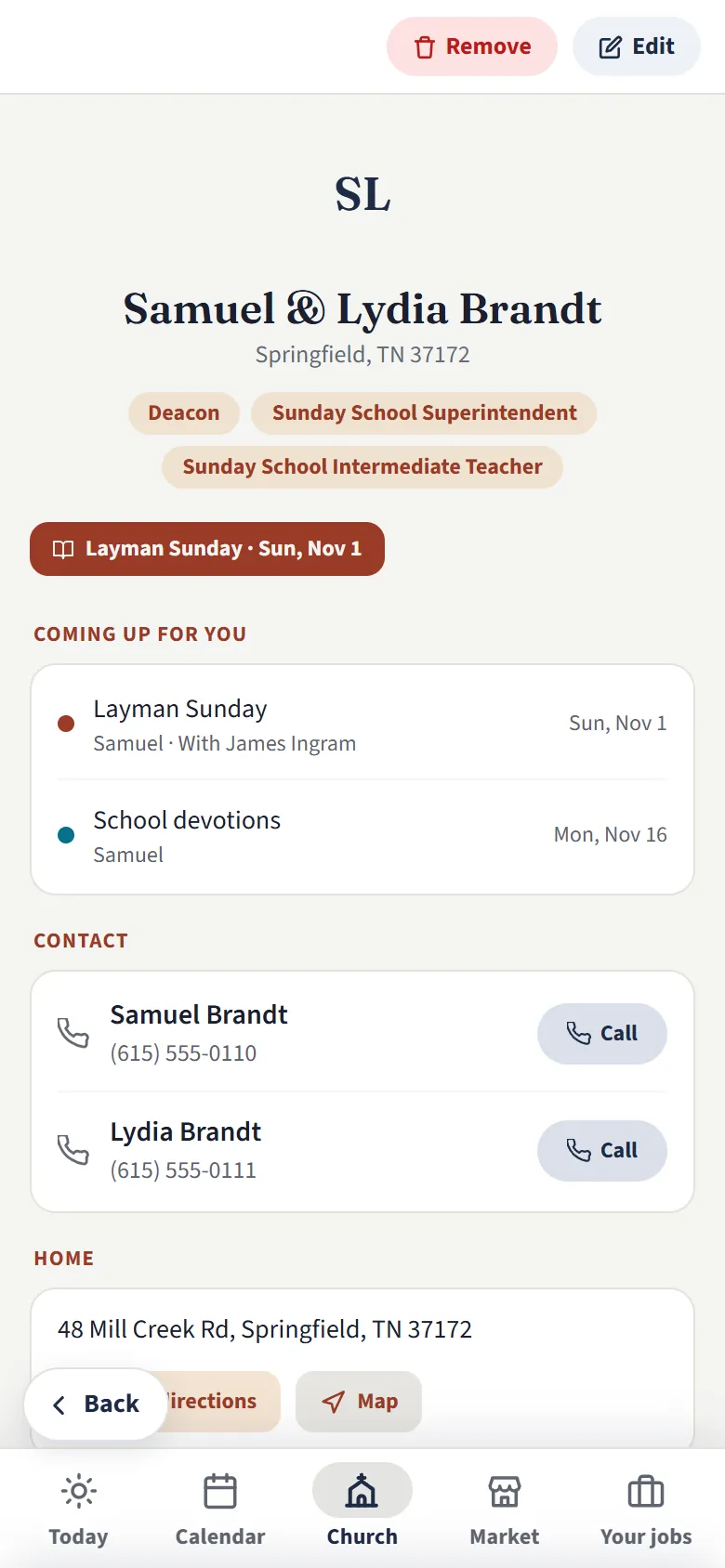
A household in the directory, with their roles, phone numbers, address and directions
Tap a familyRoles, phone numbers and address. Call, or get directions in Google Maps, from the card.
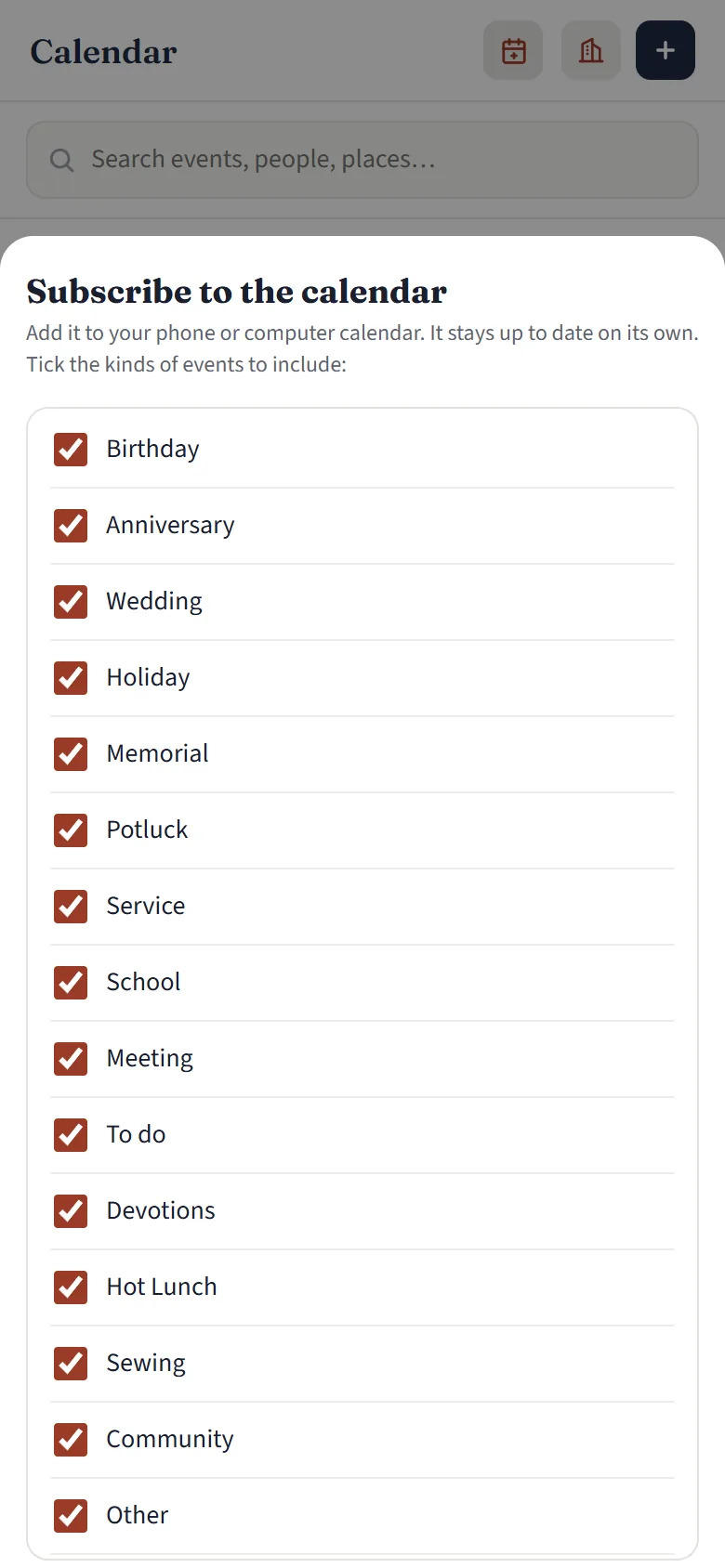
The subscribe-to-calendar sheet with categories to include
Your own calendar appSubscribe once and the congregation's events appear in Apple or Google Calendar.
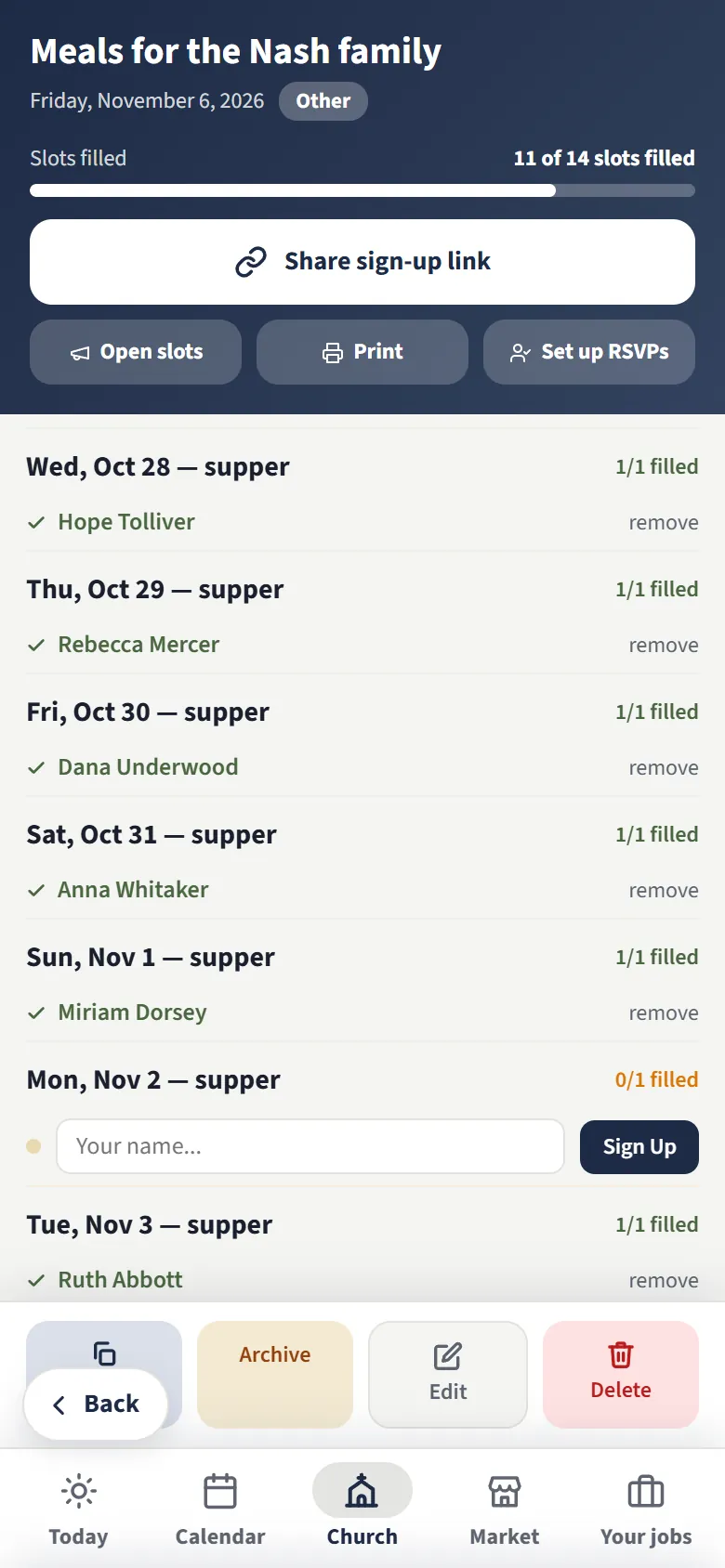
Two weeks of suppers for a family with a new baby, most of them taken
Meals for a new babyTwo weeks of suppers — put your name on a night.
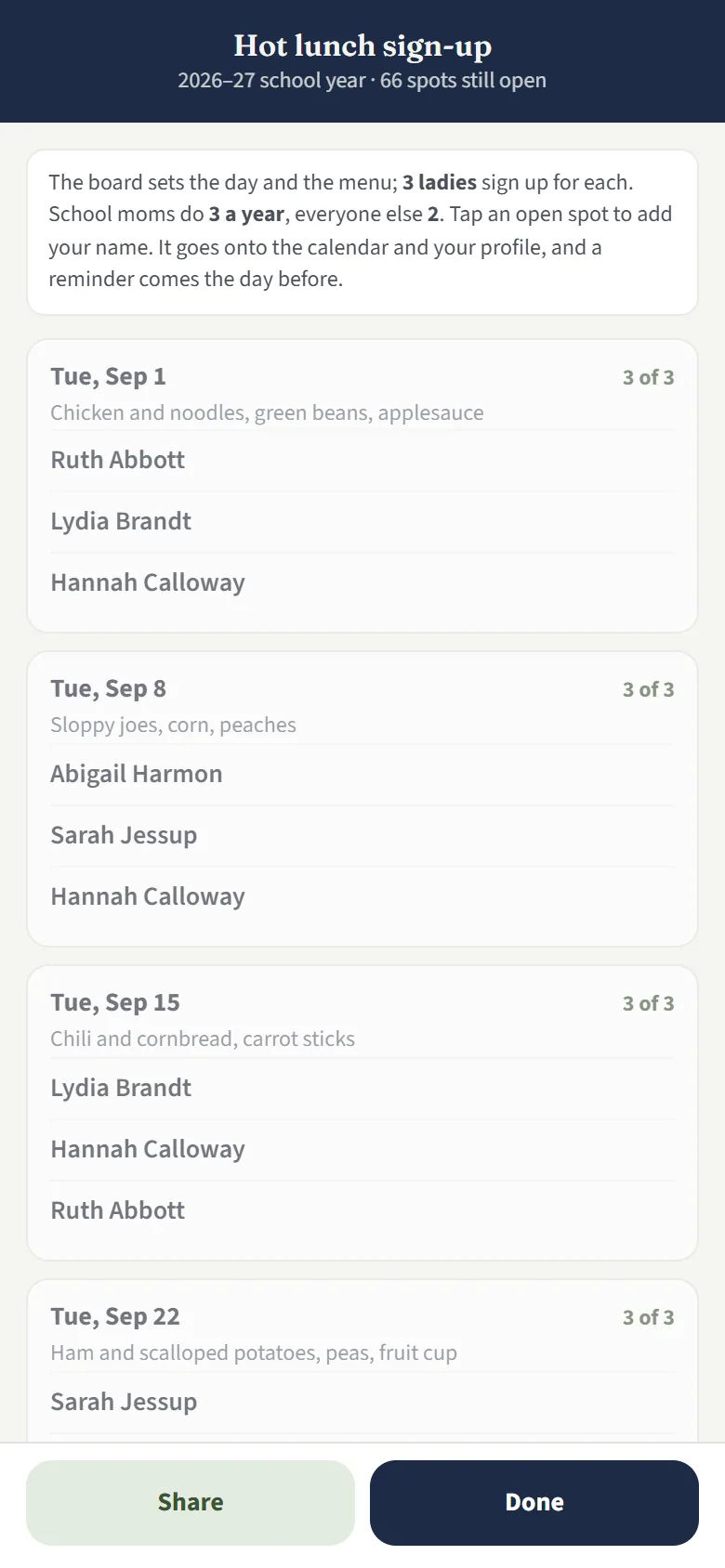
The hot lunch sign-up for the school year, with the menu and three cooks each week
School hot lunchThe board sets the menu; the cooks sign up for their weeks.
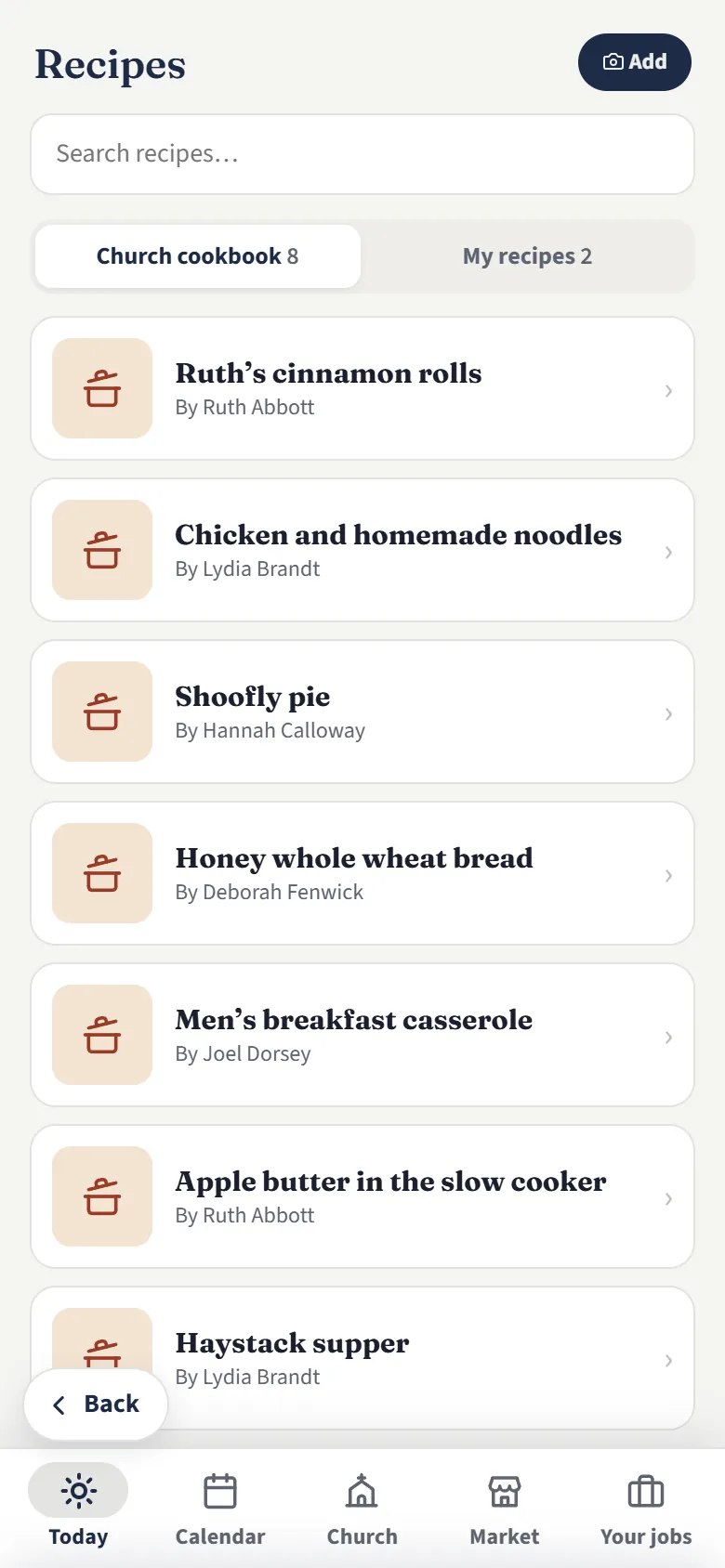
The cookbook: cinnamon rolls, chicken and noodles, shoofly pie and more
The cookbookEveryone's best recipes, and your own kept private.
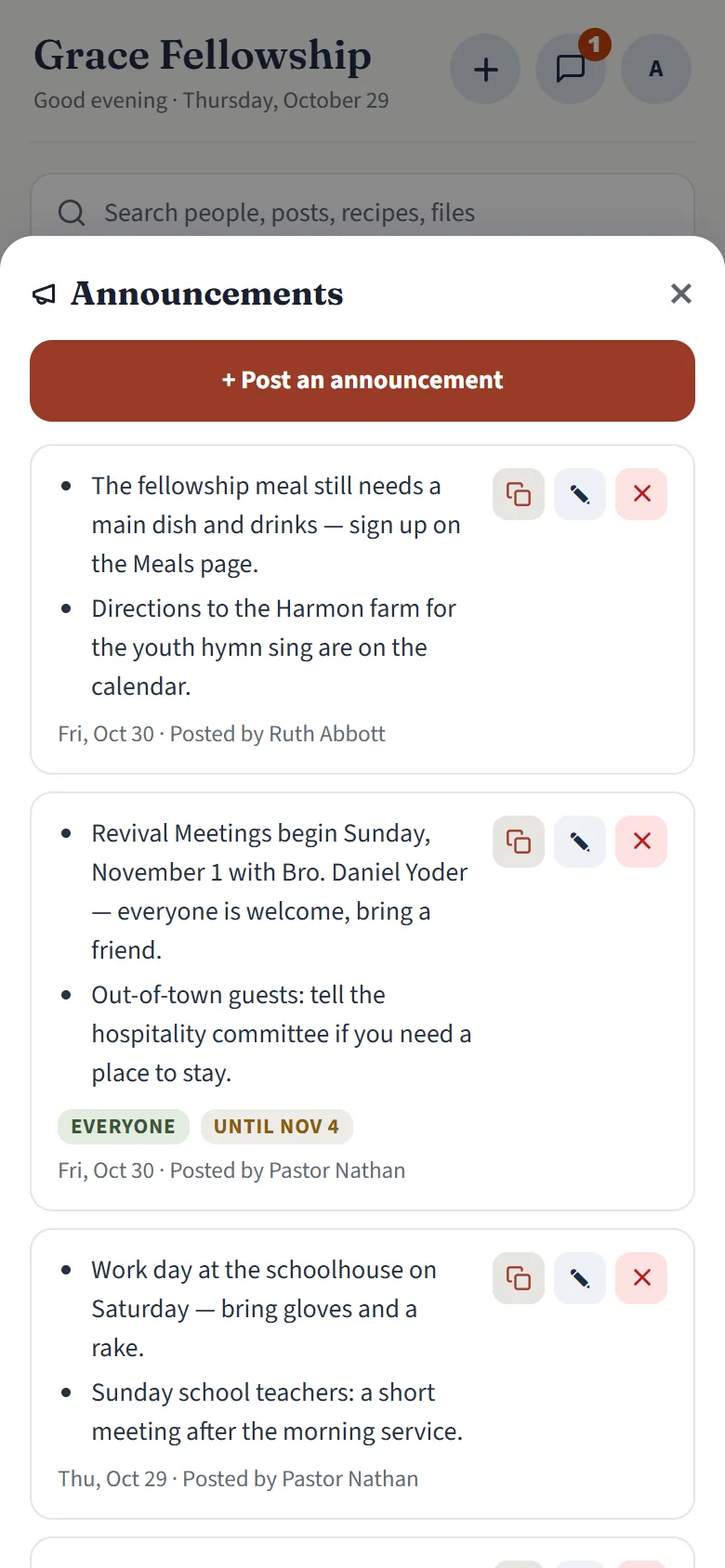
The announcements screen with this week’s notices
AnnouncementsThis week’s notices, posted in a minute, on everyone’s home screen.
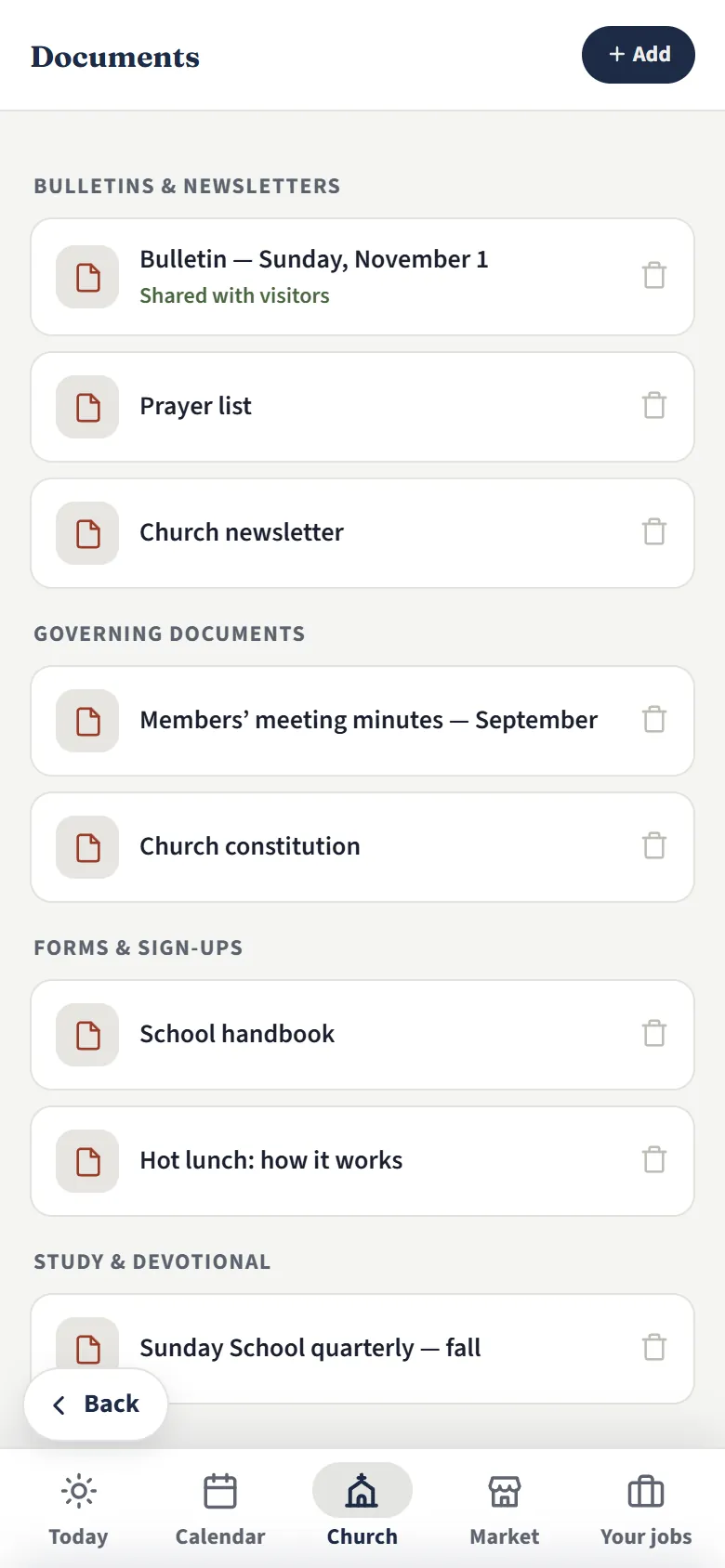
The documents library: this Sunday’s bulletin, the prayer list, minutes, the constitution and school forms
DocumentsBulletins, forms and the constitution, one tap away.
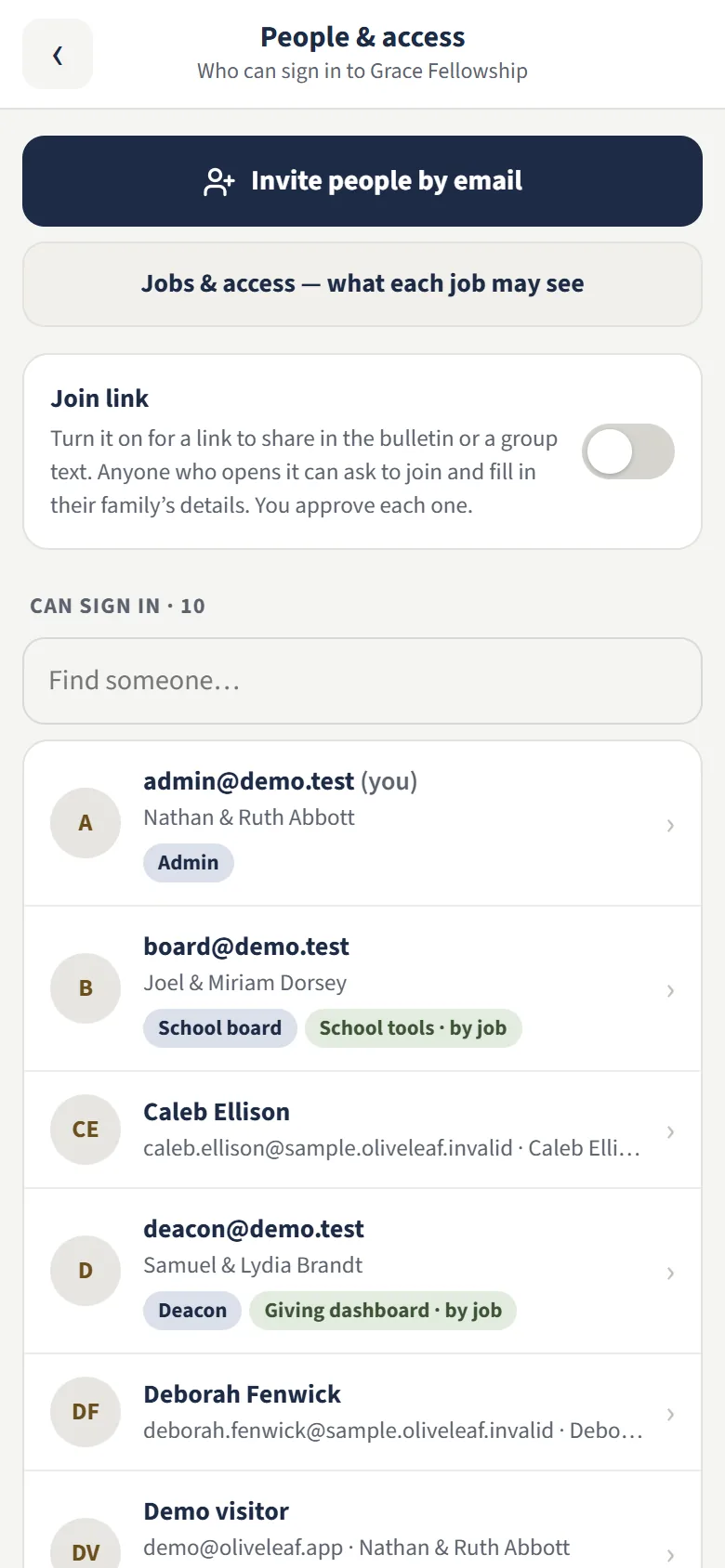
The People & access screen: invite by email, the join link, and who can sign in
People & accessInvite by email or share a join link — you approve who gets in.
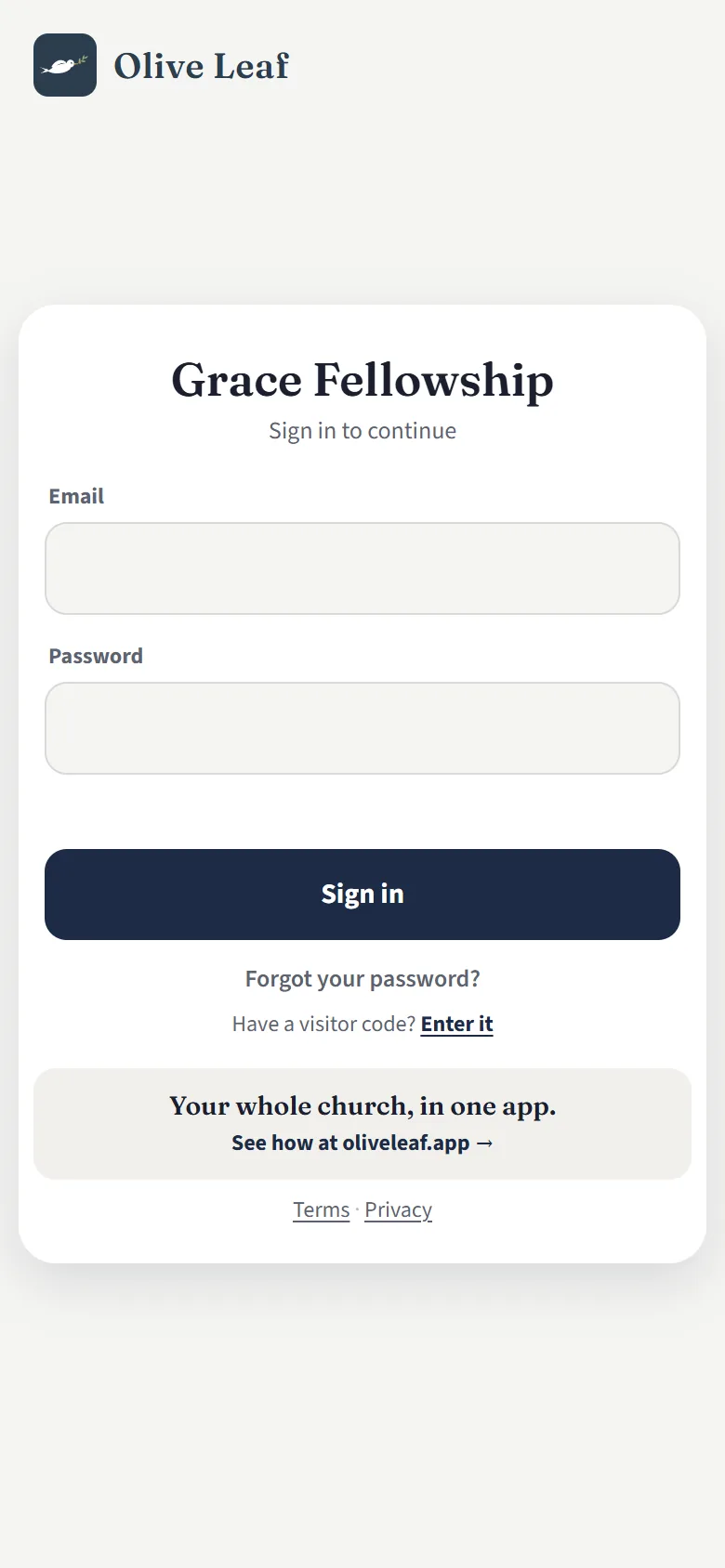
The sign-in screen for Grace Fellowship
Your congregation’s name on itEach member signs in with their own email and password.

Swipe to see more

Readings, polls, weddings and more

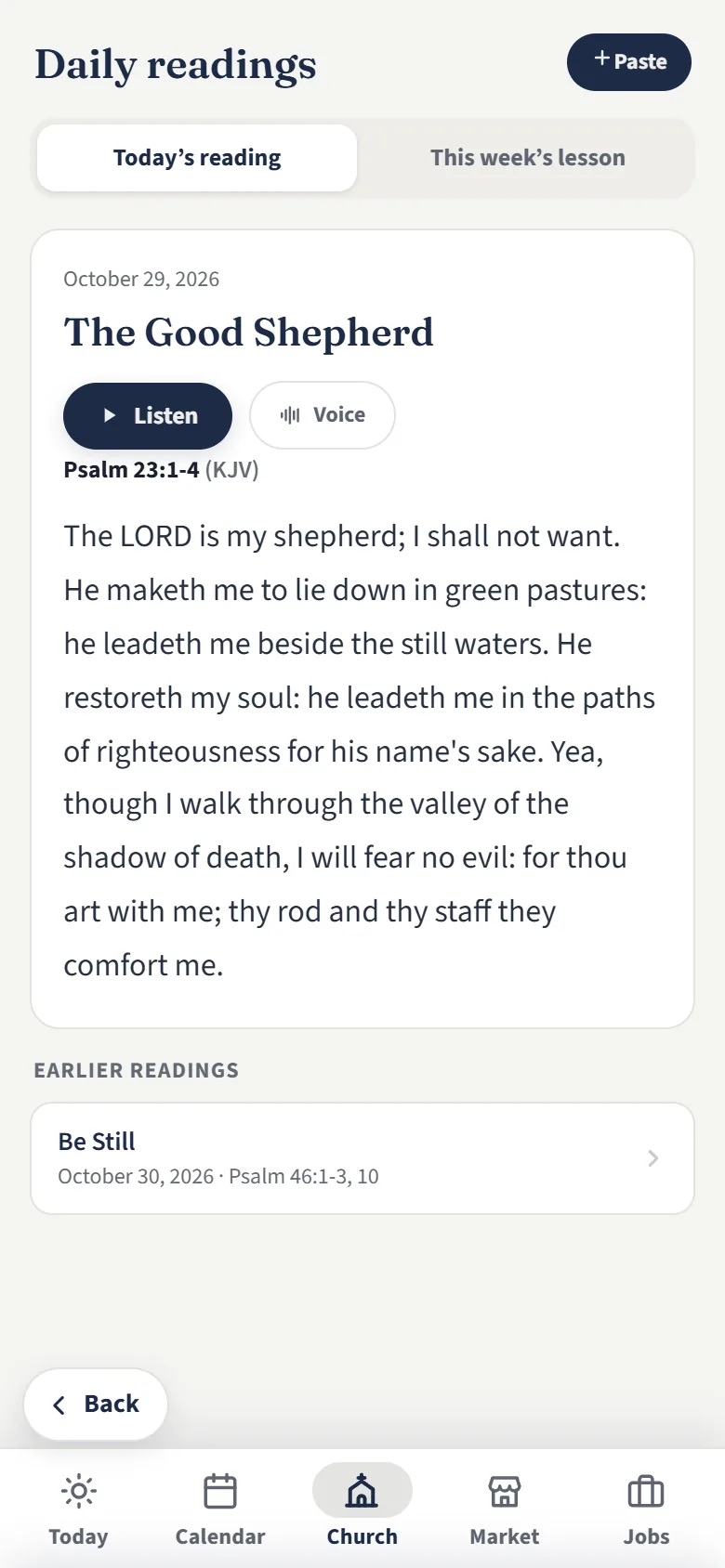
Sunday school lesson and daily readings

Right here in the app, every day. Read them, or have them read aloud.

The daily reading screen showing Psalm 23

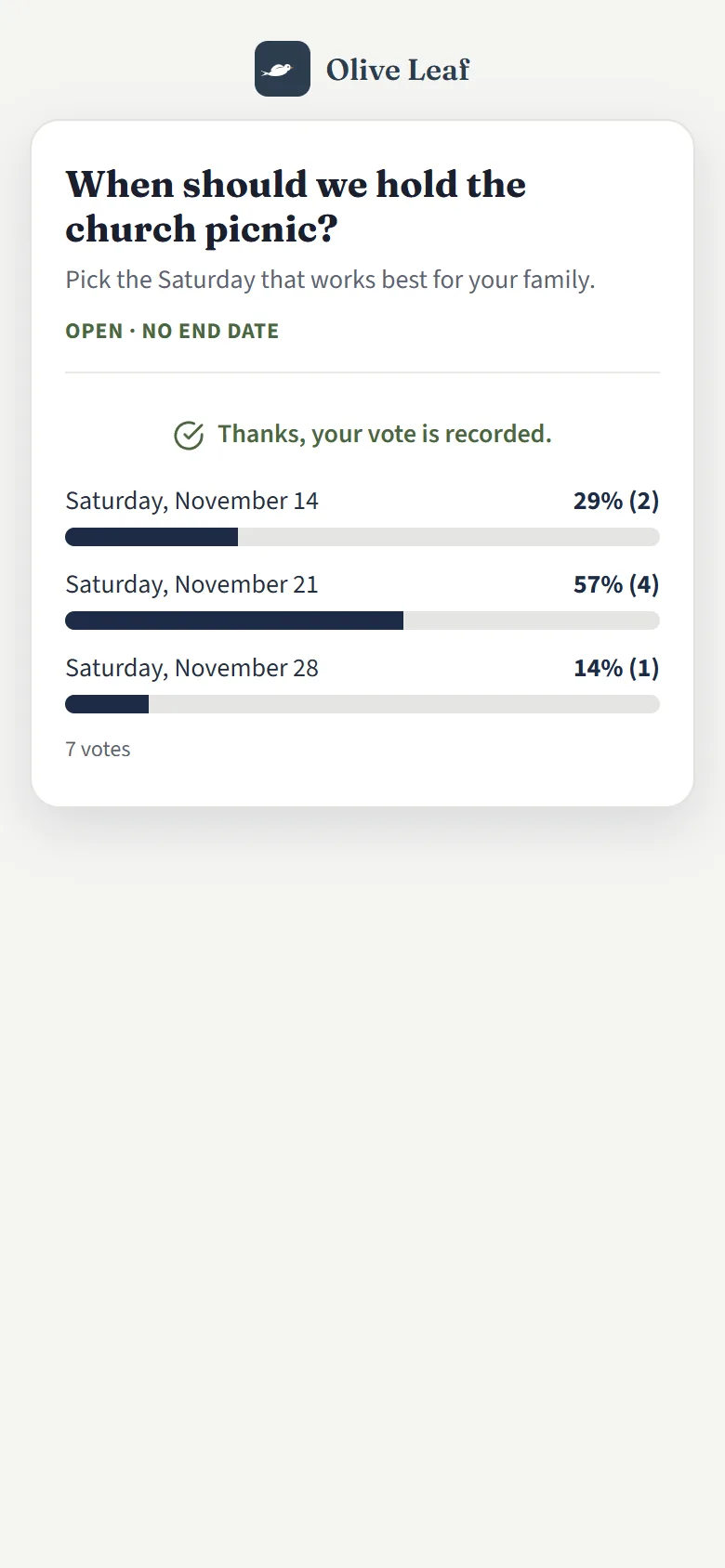
Polls and nominations

Pick a picnic date or gather nominations. One answer each, and the results can stay hidden until it closes.

A poll with results for the fall picnic date

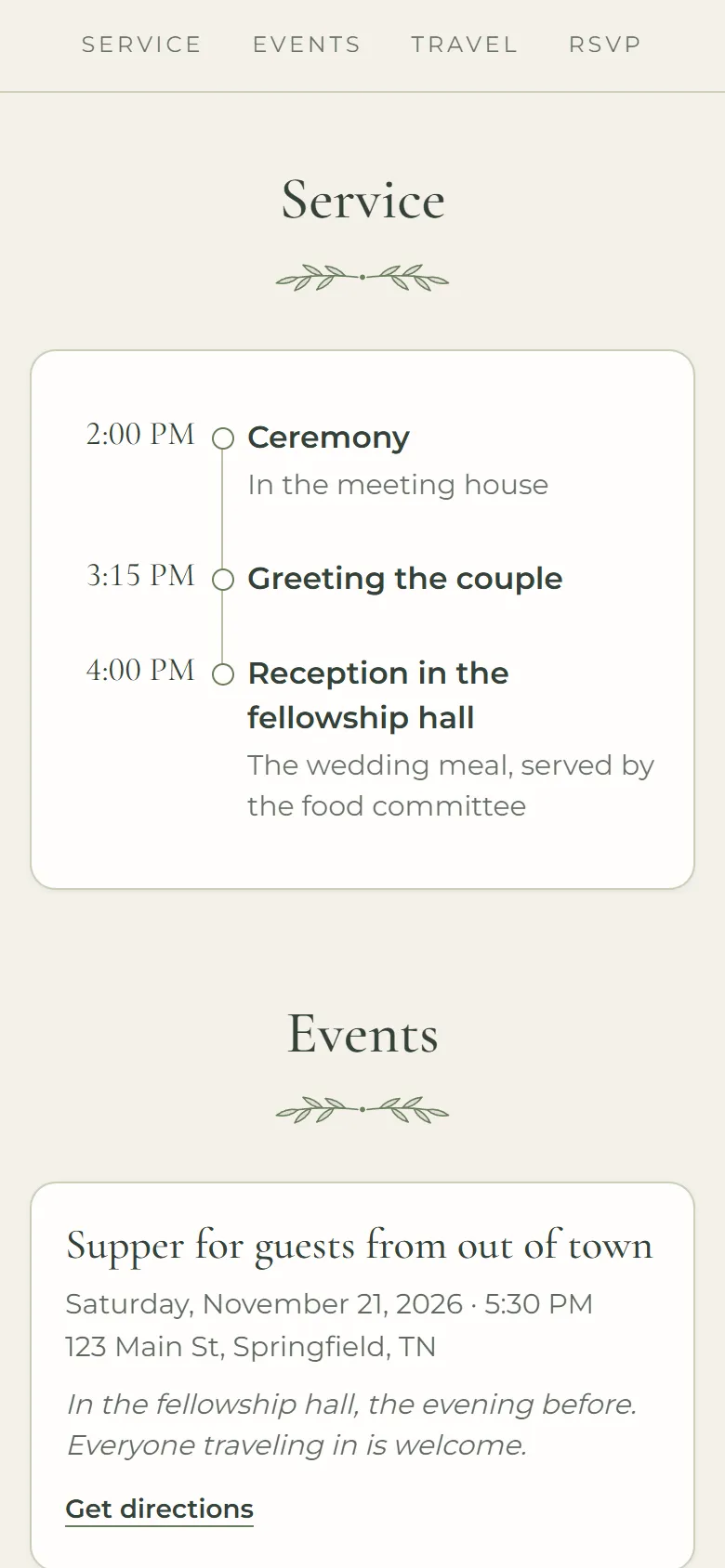
Wedding websites

Like a printed invitation, on a page of the couple’s own: the day, the order of the service, directions and the RSVP. Five looks, in their own colors.

Micah and Esther’s wedding website: the order of the service, and a supper for guests from out of town
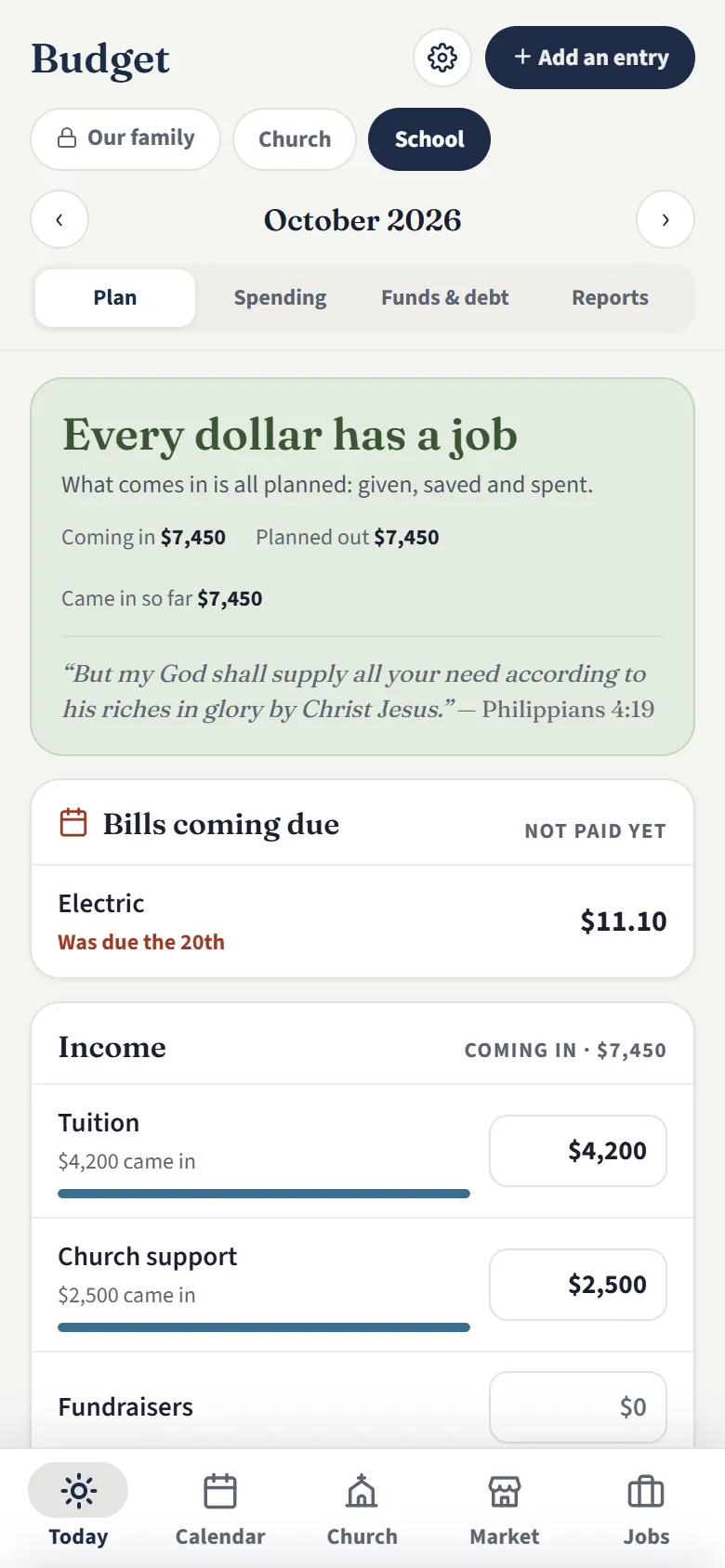
The school’s budget for October: every dollar planned, tuition and church support coming in, and the electric bill coming due
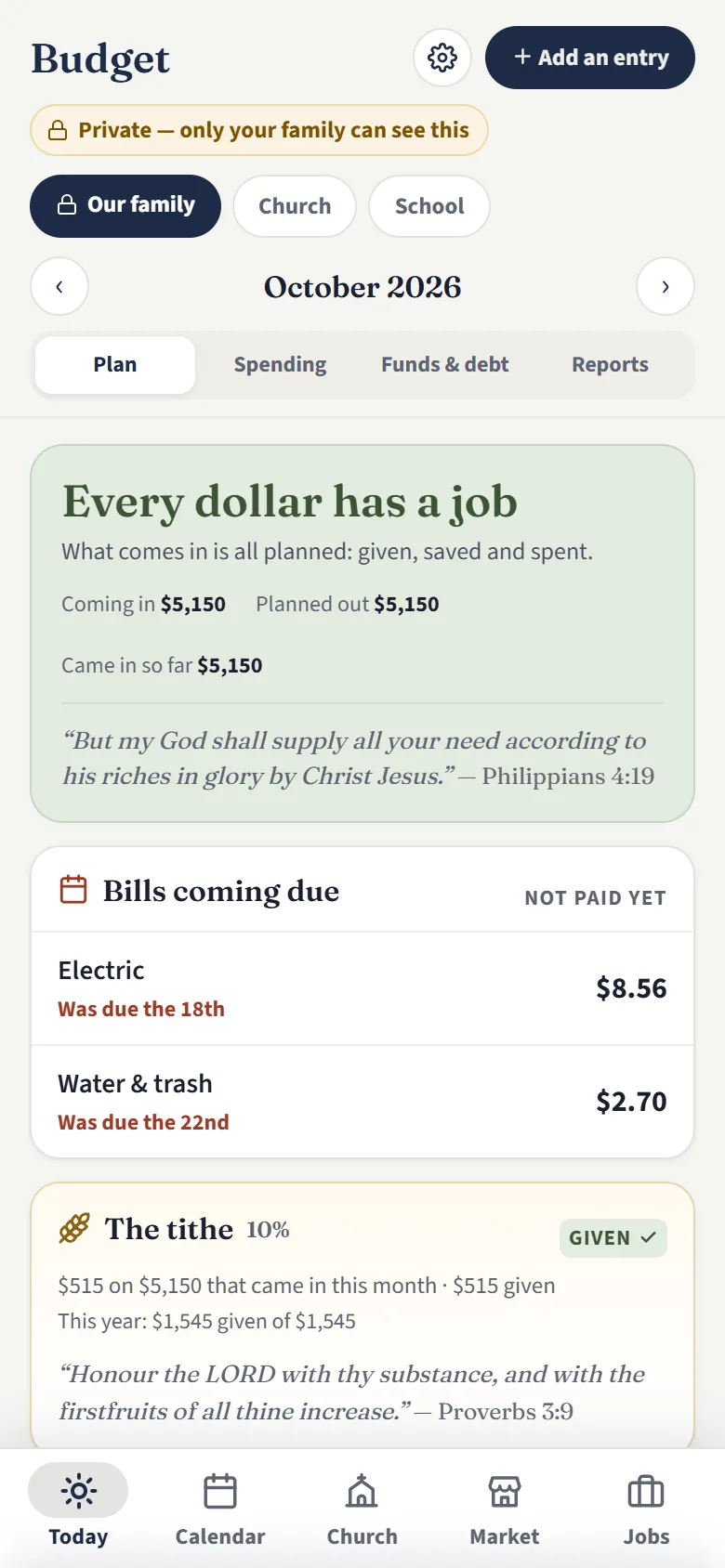
A family’s own budget, private to them: every dollar planned, the bills coming due, and the tithe

Church, School, or Personal Budgets

Plan each month's money so every dollar has a job, with the bills coming due on top.

  • The school board keeps the school's books, and the deacons the congregation's
  • Let the members see the totals, if you choose
  • A family's own budget is private. The congregation and its admins don't see it.
  • The tithe worked out from what came in
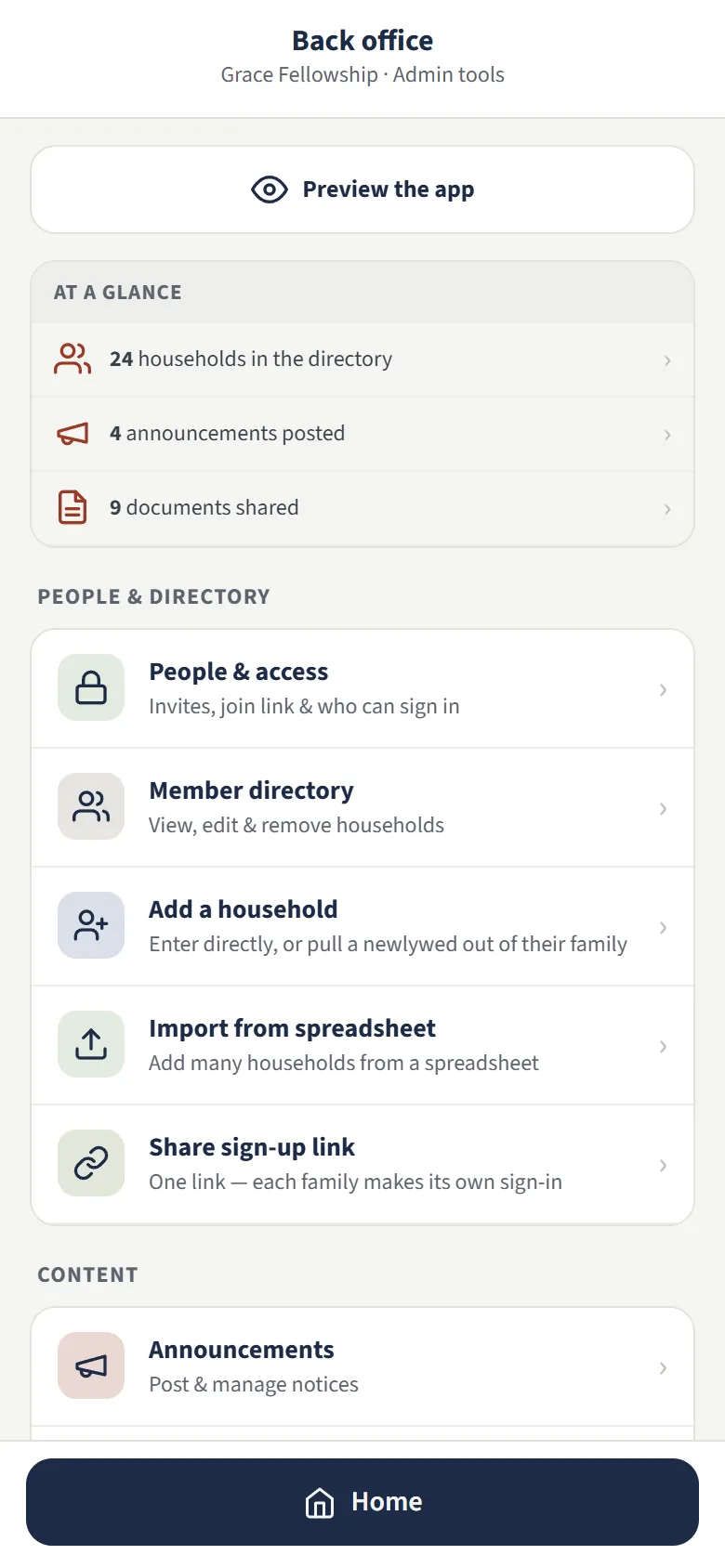
The back office for admins

Back office for admins

Add and edit households, post announcements, and run the calendar and settings, from a phone or a computer.

  • Admins, deacons, the school board and hospitality each see their own tools
  • Everyone else just sees the app

A marketplace for the whole conference

Buy, sell and rent within your own congregation, or across the entire conference: every congregation on Olive Leaf.

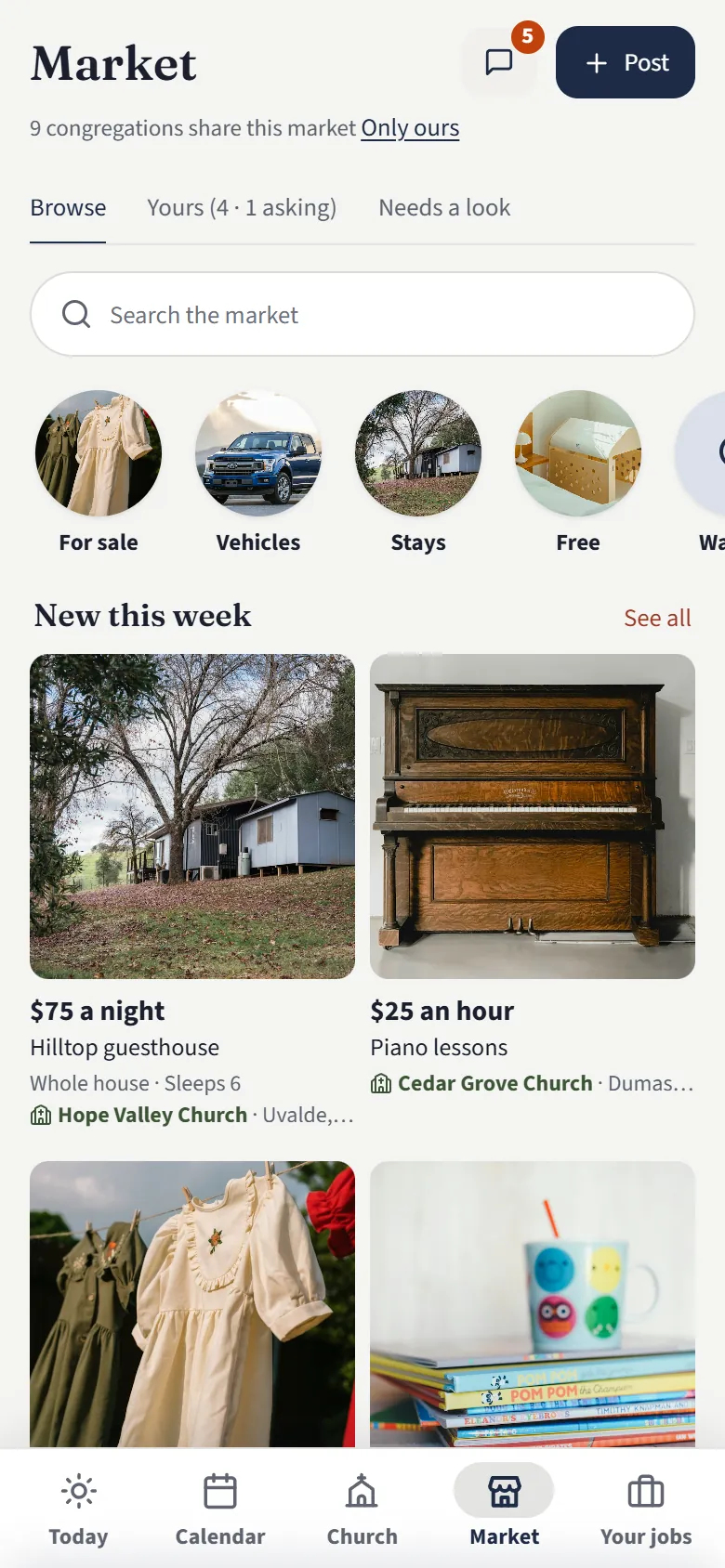
The Market: a guest house in Uvalde, girls’ dresses from Greeneville, homeschool books from Dumas and laying hens from Springfield, each with its congregation

The Market

Each post is for your congregation or for the entire conference. You choose, post by post.

  • Things for sale and things wanted, vehicles, homes and land, jobs, services and places to stay
  • Photos, the town and the congregation on every post
  • Call, text or message the seller in the app
  • Each seller can have a shop page of their own
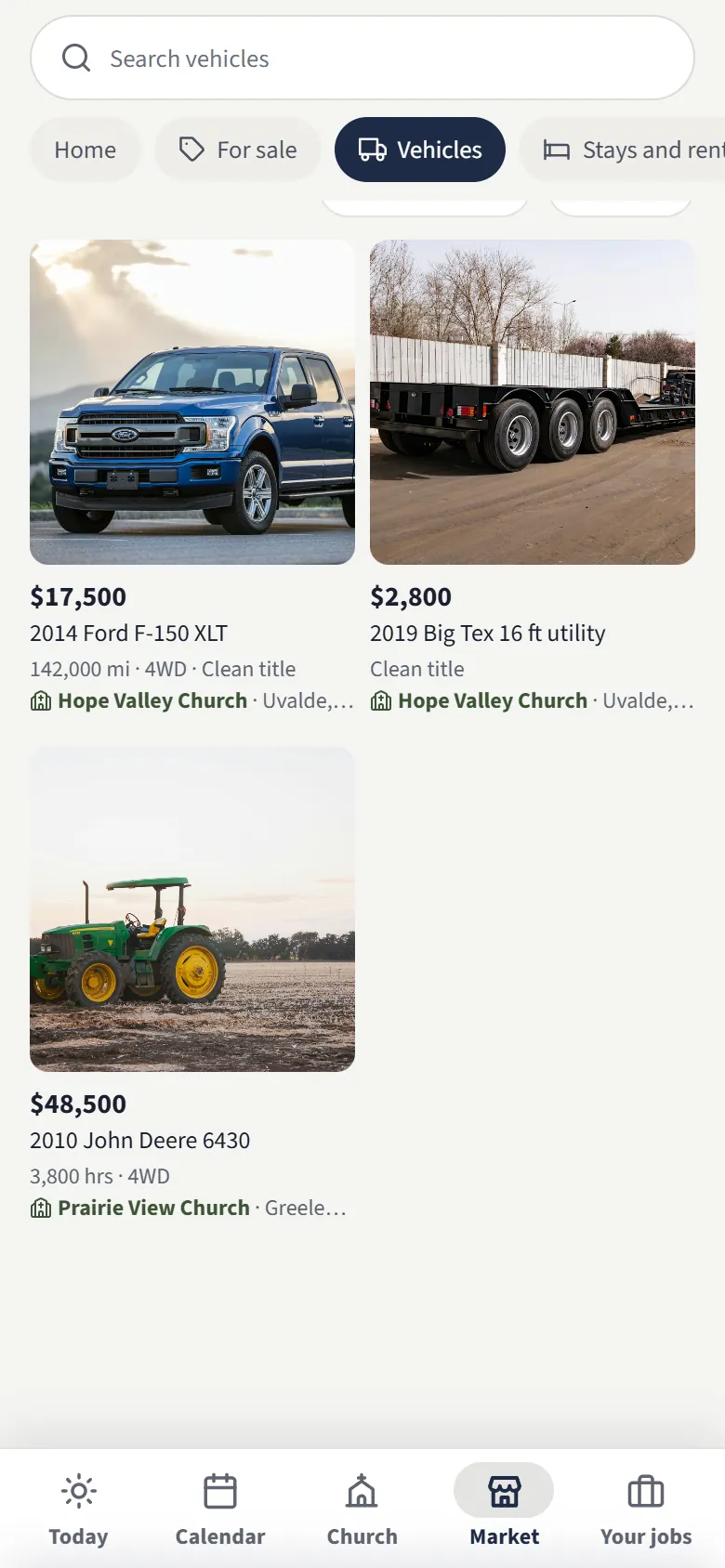
Vehicles for sale: a pickup, a trailer and a tractor, with miles, hours and title
VehiclesTrucks, trailers and tractors, with the year, miles and title.
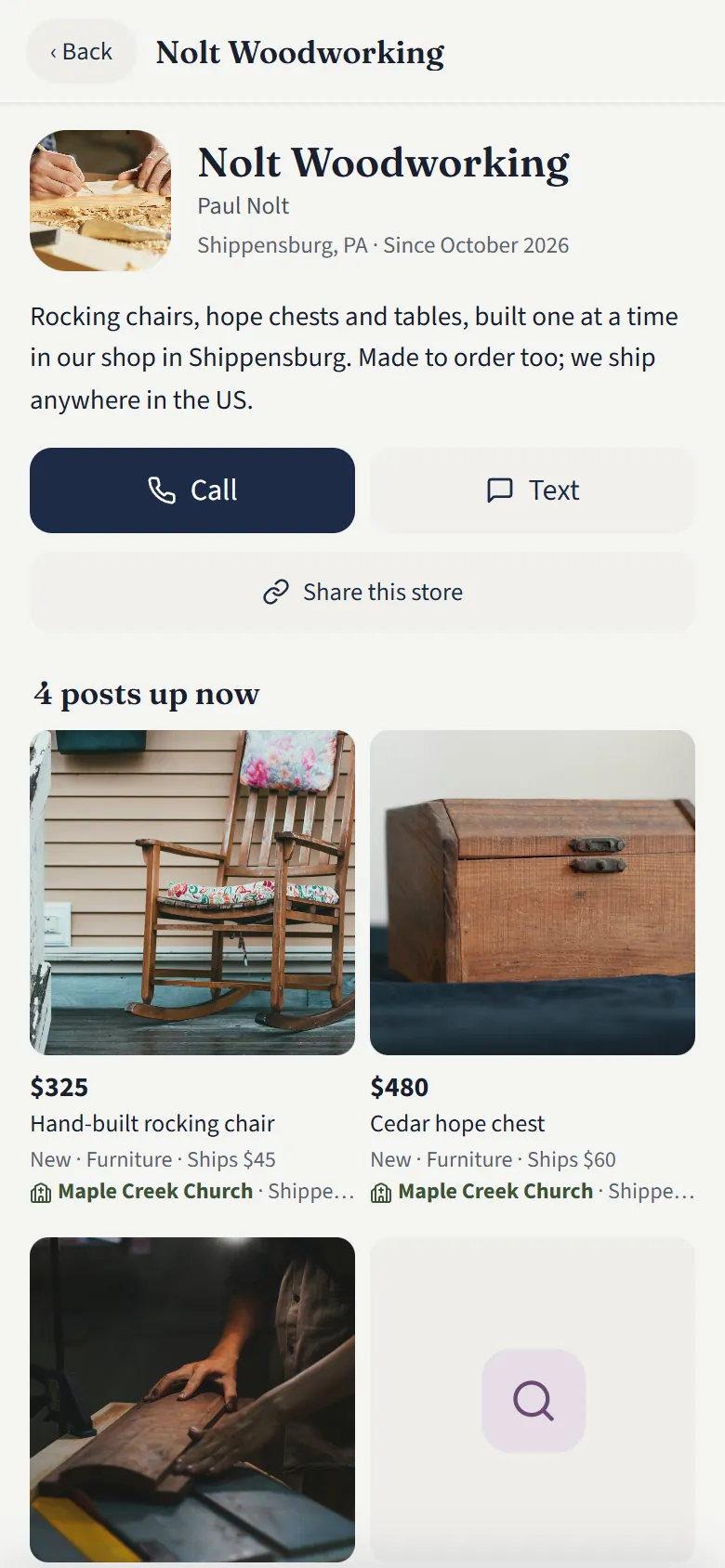
A woodworker’s shop page with rocking chairs and hope chests
A shop of their ownA woodworker, a quilter, a farm stand — everything they have, on one page.
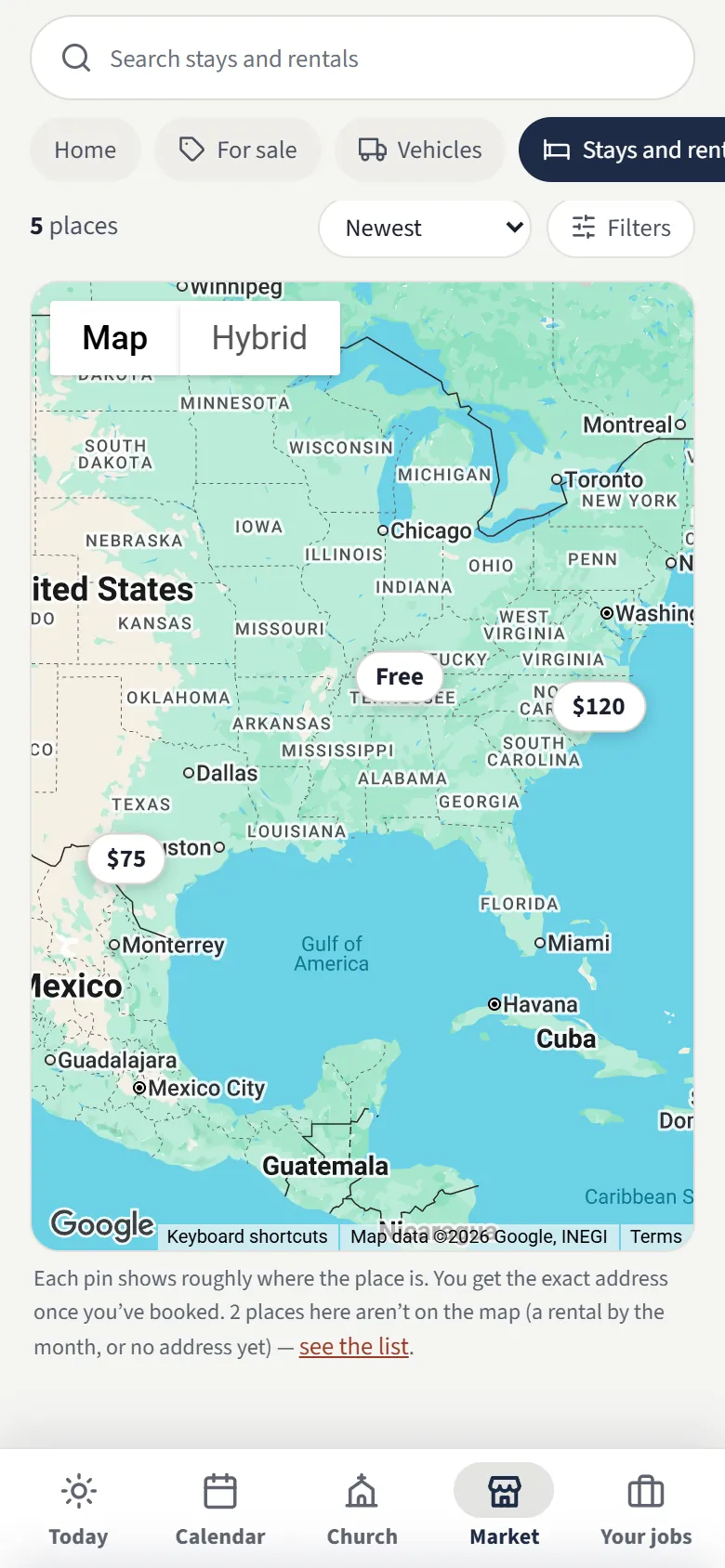
Places to stay on Google Maps, with a price on each pin
Stays on Google MapsPlaces to stay across the conference, each with its price on the pin.

Swipe to see more

Rent out a place to stay across the conference

A house, a cabin, a guest house or a spare room, for your congregation or for all congregations. When families come for a wedding or meetings, they stay with their own.

  • Photos, beds and baths, what's included and the house rules
  • Every place on Google Maps, with its price on the pin
  • Free, or your own nightly price and cleaning fee, settled between you and your guest
  • Guests ask for their dates, or book at once; you choose
  • Taken nights, a cancellation policy, and reviews both ways
  • The address and door code go only to a booked guest, the day before
  • Or rent it out by the month
Look around inside — free
Places to stay on Google Maps, with a price on each pin
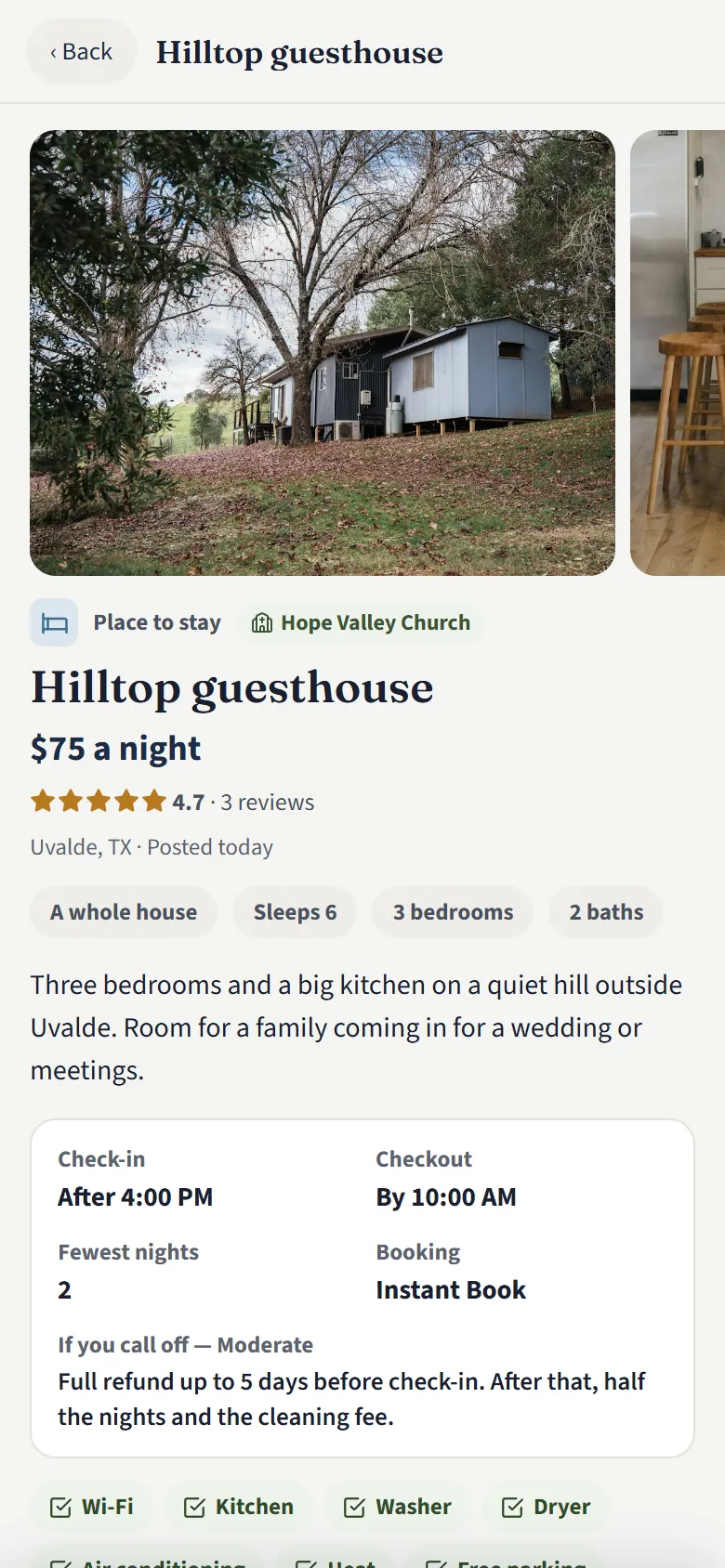
A guest house to stay in: photos, a 4.7-star rating, check-in times, Instant Book and the cancellation policy
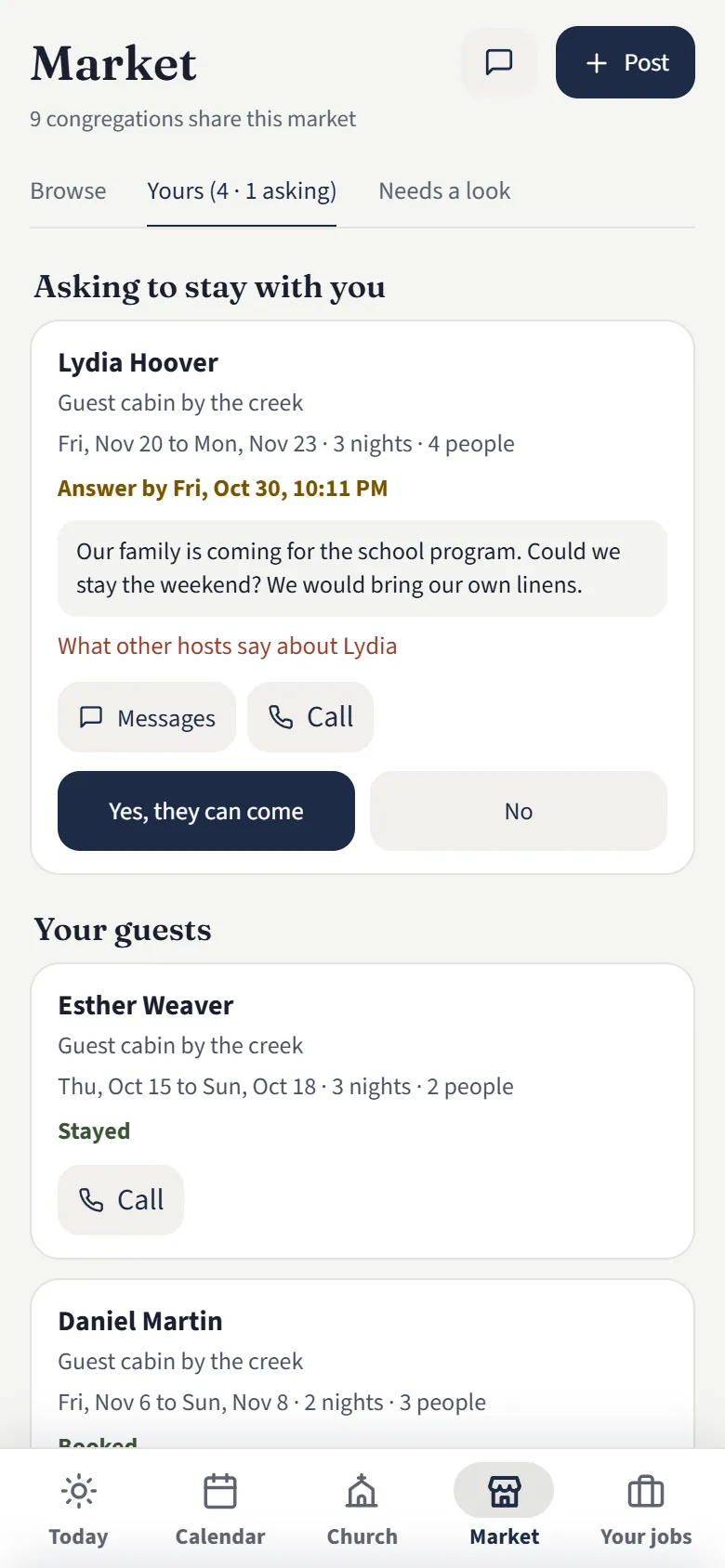
A host’s requests: a family asking to stay, with Yes and No, and the guests coming and gone

Hosting from your phone

Everything about your place is under Yours in the Market.

  • Answer a request yes or no within 24 hours
  • See who's coming, who's staying and who has been
  • Change the photos, price and rules, or close off nights
  • Set the door code for each booking
  • Message your guests, or pause with "Not taking guests"
  • On Airbnb or Vrbo too? Link the calendars both ways, so nobody books the same nights twice.

A website for your community

Your congregation's own website, kept up to date from Olive Leaf. Choose one of three designs, each in your own colors, then make it yours in the website editor: move anything, change the words, the photos, the fonts and colors. It's just $29 a month more, and only if you want it.

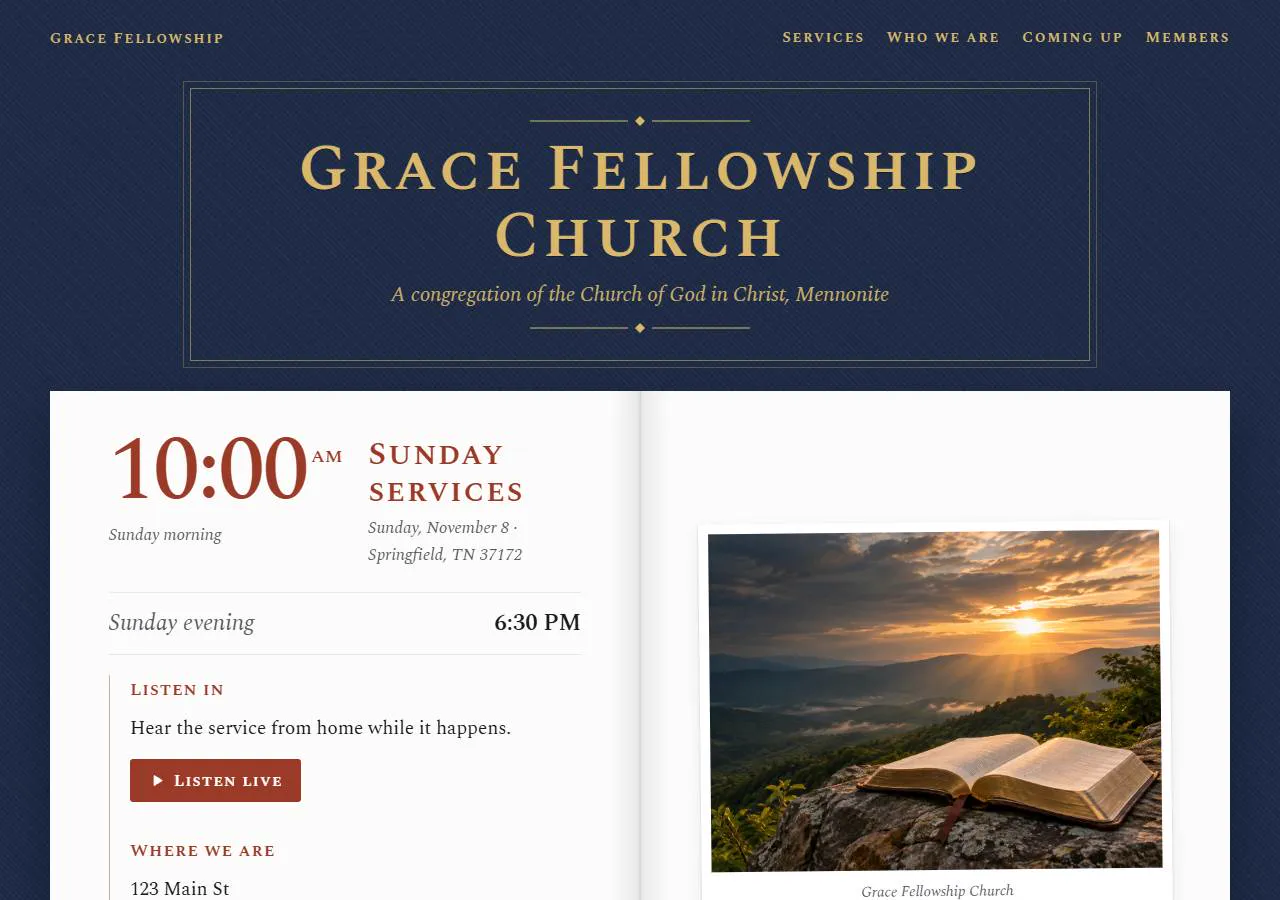
The Hymnal design for the sample congregation: its name in gilt on navy book cloth, then the service times, Listen live and a photo of the meetinghouse on an open white page
The HymnalYour name stamped in gilt on book cloth, and the page set like an open hymnal.
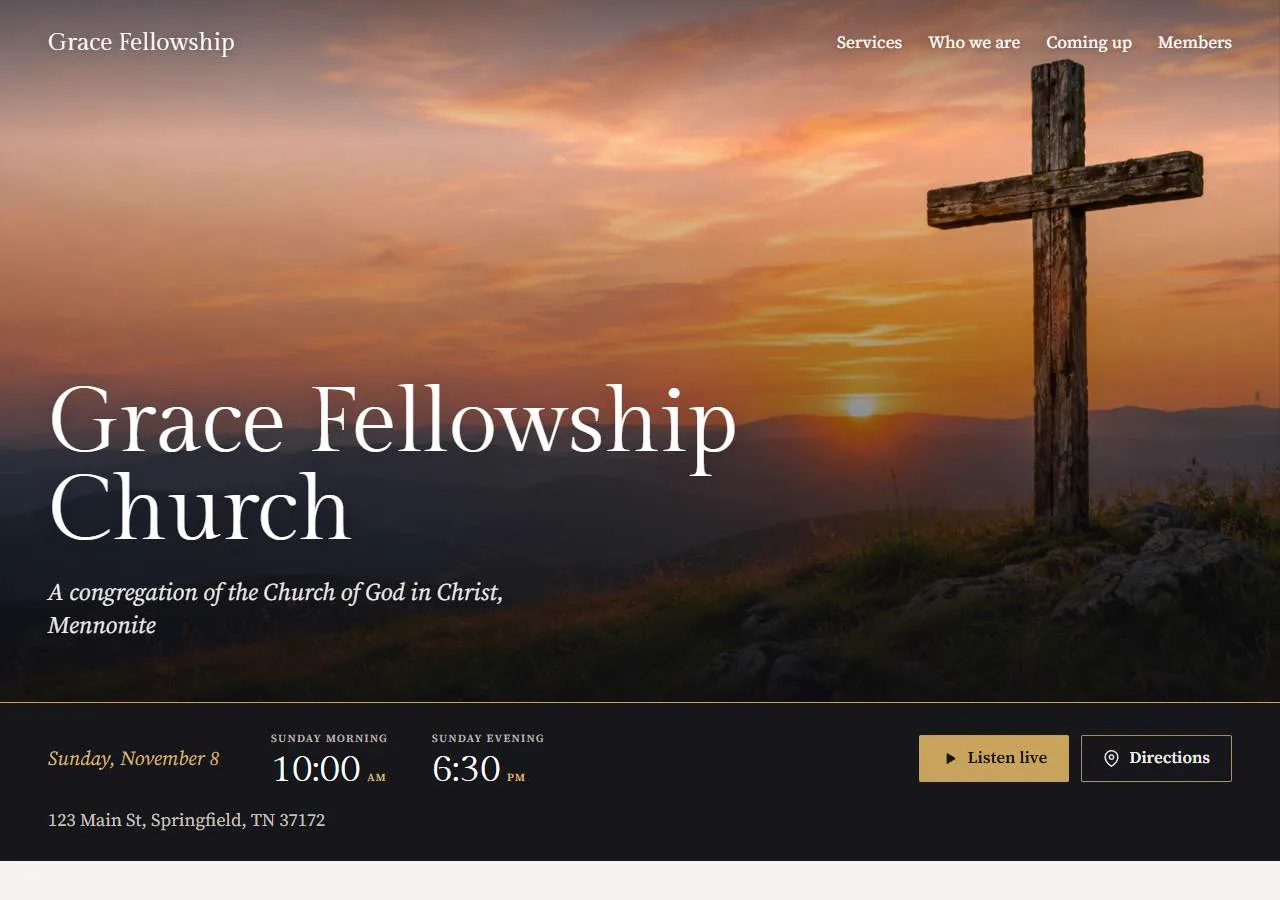
The Evening Light design for the sample congregation: its photograph of a cross on a hill at sunset fills the screen with the name over it, and below a dark band with the morning and evening times, Listen live and Directions
Evening LightYour photo across the whole screen, your name over it, in evening colors.
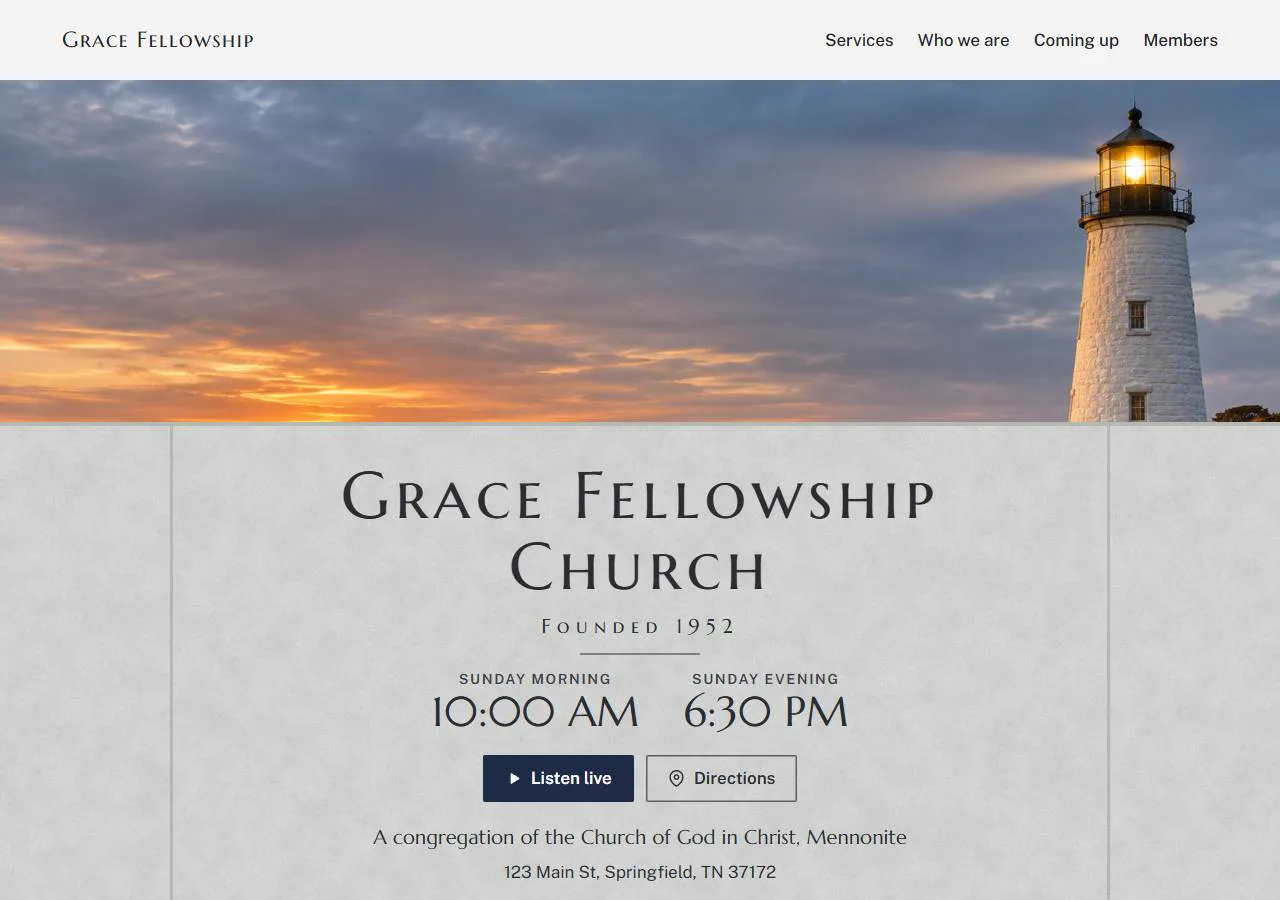
The Cornerstone design for the sample congregation: a photo of the meetinghouse across the top, and a stone below it with the name, the year it was founded, the service times, Listen live and Directions
CornerstoneYour meetinghouse photo, with your name and founding year cut into a stone.

It fills itself in

Your website takes these from what you already keep in Olive Leaf:

  • Your service times
  • Where you are, with directions
  • The Listen live button for your live audio
  • Today's Bible reading, with a sign-up for the Daily Sunday School Bible Readings
  • Services and community events coming up
  • Notices for everyone

You add your own welcome, a cover photo and up to 12 pages, like what you believe, your school and how to visit. The directory and map are never on your website. It loads quickly, and search engines can read it.

$29a month

Added to your Olive Leaf bill when you put it live.

Make it before you pay
Design it and look it over in Olive Leaf's back office, under Website. The $29 starts when you put it live, and you can turn it off there too.
Free for your first 60 days
A new congregation's 60 free days cover the website too. It's billed with the rest when they end.
A web address of its own
Choose one as you make it. It's bought for $25 a year when your website goes live, and we set it up for you. Until then, your website is at an oliveleaf.app address.

Your directory stays in your congregation

Members only

Each member signs in with their own email and password. Only people your congregation lets in see the directory; it's never on a public page or in a search engine.

You decide what visitors see

Your congregation's public page shows service times, where you meet and the calendar, never the directory. Visitors see the directory only if you give them a visitor code.

Shared only within your conference

Each congregation's information is walled off from every other, by the database itself. The one way across is the congregations' map, between congregations of your own conference: a family's name and church jobs, and its phone and address unless it keeps them to itself. Your admins can leave your congregation off it.

Up and running this week

Most congregations set themselves up: a checklist in the app walks your admin through each step and ticks it off when it's done. If you'd like a hand, we'll help.

Look around

Tell us your name and your congregation's, and you're straight into a sample congregation with every screen filled in. Yours for 14 days.

Start your congregation

When you're ready, pick your congregation's name and short name, and add a bank account or card. Nothing is charged for 60 days. About five minutes.

Bring everyone in

Your congregation starts empty. Enter your families yourself or import your spreadsheet, or send out one link or print a sign-up page so each family fills in its own.

Rather have a hand? We'll set it up with you.

Send us what you already have: your directory spreadsheet, your calendar, who holds which job. We'll bring it in and show your admins around, so your members find it ready the first time they open it.

  • Your families brought in from the spreadsheet you already keep
  • Your calendar put in, from services to school days
  • Your jobs set up, starting now
  • Your admins shown around

Your first 60 days are free

Two months to set up your church and use it with your members before the first bill. After that it's $1.50 a month for each husband and wife in your directory, paid by your deacons. Children are never counted, and members never pay anything.

60 days free

then $1.50 per adult in your directory, per month

  1. When you sign upA bank account or card goes on file. $0.00 today.
  2. Days 1 to 60Set up, invite your members and use every part of it. $0.00.
  3. Day 61The first bill, for the adults in your directory then. Cancel before, and you're never charged.
  • Set it up yourself, or we'll help if you'd like
  • One bill for the congregation, paid by the deacons
  • Look around inside before you pay
  • Every feature, for everyone
  • Children are always free
  • Pay by bank or card · cancel any time
  • A website for your community is extra, if you want one: $29 a month

Your first 60 days: $0.00

$90.00a month from day 61

Counted from your directory on day 61. You start with just yourself: $1.50.

Good questions

What do we get when we fill in the form?

The whole app, open in front of you a second later — a sample congregation with two dozen made-up families, a full calendar, meal sign-ups, the school's hot lunch, a cookbook, a family budget, and a market it shares with eight made-up sister congregations around the country. No account, nothing to install. You can look at every screen for 14 days; you just can't change anything, because it's the same sample congregation everyone looks around.

Why add a bank account or card before the free days?

So your congregation opens straight away and nothing stops when the 60 days are up. Nothing is charged when you add it. Stripe's page will say $0.00 today, then $1.50 a month: that's one adult, you, because your directory starts empty. As you add families the bill follows the number of husbands and wives. Cancel before day 61 and you're never charged.

Will you help us set it up?

If you'd like, yes. Most congregations set themselves up: a checklist in the app takes your admin through each step — your service times and live audio, your families (bring the spreadsheet you already have), your jobs and a second admin, the calendar, and inviting your members last — and ticks each one off when it's done. If you'd rather have a hand, tell us what you have and we'll help you bring in your directory and calendar, set up your jobs and show your admins around. Email carson@5loavesdigital.com, use the form below, or tap Contact support in the app. Your first 60 days are free, so there's time to get it right before the first bill.

Can we try it with our own families?

The look-around is for seeing how it works. When you start your congregation, your directory is yours from the first minute — type it in or import the spreadsheet you already have, and it takes a few minutes.

What's in our congregation on the first day?

It starts empty, so everything in it is yours — the made-up families stay behind in the sample congregation, and there's nothing to clear out. When you first open it, the app asks how you'd like to add your families: enter them yourself, send out one link so each family fills in its own details, or print a sign-up page with a QR code for the bulletin board. Use any of them, or all three. Families who sign up from the link or the page wait for your OK before they're in the directory.

Can we see it before we sign up?

Yes — that's what the look-around is for. Fill in the form below and you're in, no card and no account, seeing every screen working before you pay a cent. If you'd rather have someone walk you through it first, email carson@5loavesdigital.com.

Who can see our directory?

Members of your congregation who have signed in — and nobody else, unless you decide otherwise. If you'd like visitors to have it, an admin can set a visitor code: whoever you give it to sees what a printed directory has — names, phone numbers, addresses and the map — for 30 days. There's no code until you set one. Guests who open a sign-up sheet, RSVP or wedding link see that one page and nothing else, and your congregation's public page — service times, where you meet, the calendar and whatever you mark for visitors — never shows the directory. Other congregations in your conference see your families on the congregations' map: their names and church jobs, and their phone numbers and address unless a family keeps them to itself. Never children, birthdays or notes. Someone there can ask a family for its details, and they reach them only if the family says yes. Your admins can leave your congregation off the map.

Can members rent out a house or a room?

Yes — that's what Stays is for, like Airbnb but across the conference. A member lists a house, a cabin, a guest house or a spare room with photos, the house rules, the cancellation policy and a nightly price (or free). Guests ask for their dates or book at once, as the host chooses; the address and door code go to a booked guest the day before. A place already on Airbnb or Vrbo can link its calendars, so a night taken in one shows as taken in the other. Any payment is settled between the host and the guest. A place can be rented out by the month, too.

Who sees what we post in the Market?

You choose on each post. Our congregation keeps it inside your congregation. All congregations shares it with members of every congregation on Olive Leaf and with people who sign up for the Olive Leaf Market. Anyone can look through those posts without signing in, but they don't see your name, phone number or email. Your directory is never part of the Market.

Does every member need an account?

Each adult signs in with their own email and password, so everyone sees what's meant for them and nobody shares a password. Parents can give their youth a sign-in of their own. Guests using a sign-up or RSVP link don't need one.

How do our members get in?

Invite them by email from the back office, or turn on your congregation's join link — put it in the bulletin, a group text, or print its QR code. Anyone who uses the link asks to join, and an admin approves them before they see anything. Once a family is in, the parents can give the other adult and their youth their own sign-ins without waiting on you.

We already have our list in a spreadsheet.

Import it — Excel or CSV. You can also add or fix households by hand any time.

Does it work on older phones?

It runs in the phone's web browser, on iPhone and Android. Add it to the home screen and it works like any app from the app store, with its own icon and notifications. It works on computers and tablets too.

Who pays for it?

The congregation, as one account — usually the deacons, from the congregation's funds. Members never pay to use it and are never asked for a card when they sign in.

What counts as an adult?

A husband or a wife listed on a household in your directory, whether or not they sign in. Children are never counted, however many there are. It's $1.50 a month for each.

Can we have a website for our congregation?

Yes, if you'd like one. It's $29 a month, added to your Olive Leaf bill, and your first 60 days cover it too. You make it in the back office, under Website, and the $29 starts only when you put it live. Choose The Hymnal, Evening Light or Cornerstone; each uses your congregation's colors. Then change anything on it in the website editor: drag things where you want them, type over the words, add photos, pages and buttons, and choose your own fonts and colors. It fills itself in from what you keep in Olive Leaf: your service times, where you are, Listen live, today's Bible reading, what's coming up and your notices. You add a welcome, a cover photo and up to 12 pages. The directory and map are never on it. Your website starts at an oliveleaf.app address. For a web address of your own, choose one as you make it; it's bought for $25 a year when your website goes live, and we set it up for you.

Can we take our information with us?

Yes. Admins can export or print the directory any time. Your congregation's information belongs to your congregation.

Still have a question?

Send it here — a question, or that you’d like help setting up — and we’ll get back to you, or email carson@5loavesdigital.com.

Look around a sample congregation

Fill this in and you're straight in: nothing to install, no account, and 14 days to look around. When you're ready, start your congregation: the first 60 days are free, then it's $1.50 per adult a month, and you can cancel any time.